Use the built-in test runner on the Interactly platform to verify your tool is configured correctly before going live.
1
Open the Test Panel
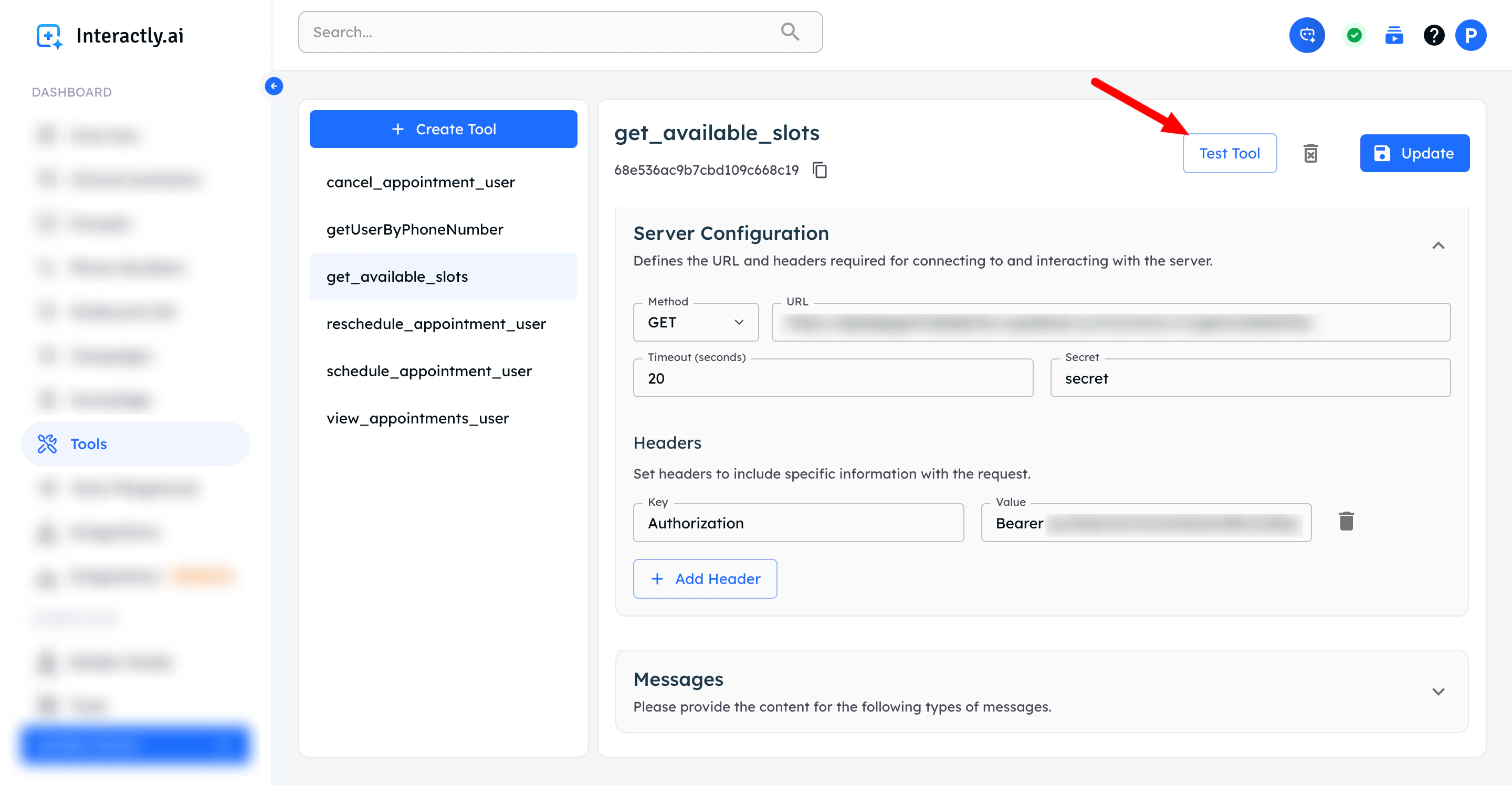
Navigate to your tool and click the Test Tool tab to open the testing interface.
Click to start tool testing
2
Review Tool Details & Fill Parameters
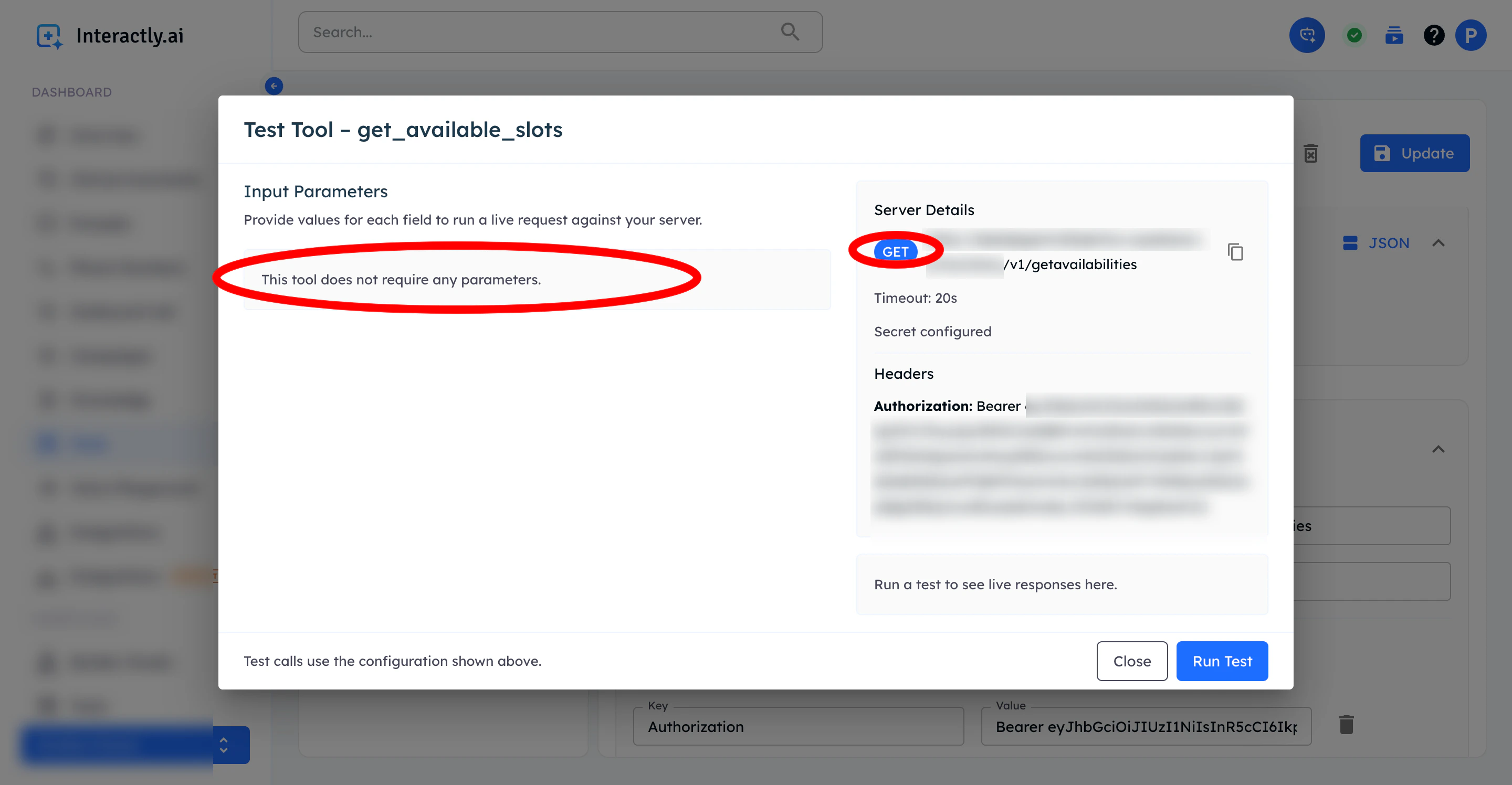
You will see a detailed view of your configured tool. Any parameters defined for the tool are listed on the left side — fill in the required values before running the test.
Tool details with parameter input fields on the left
3
Run the Test
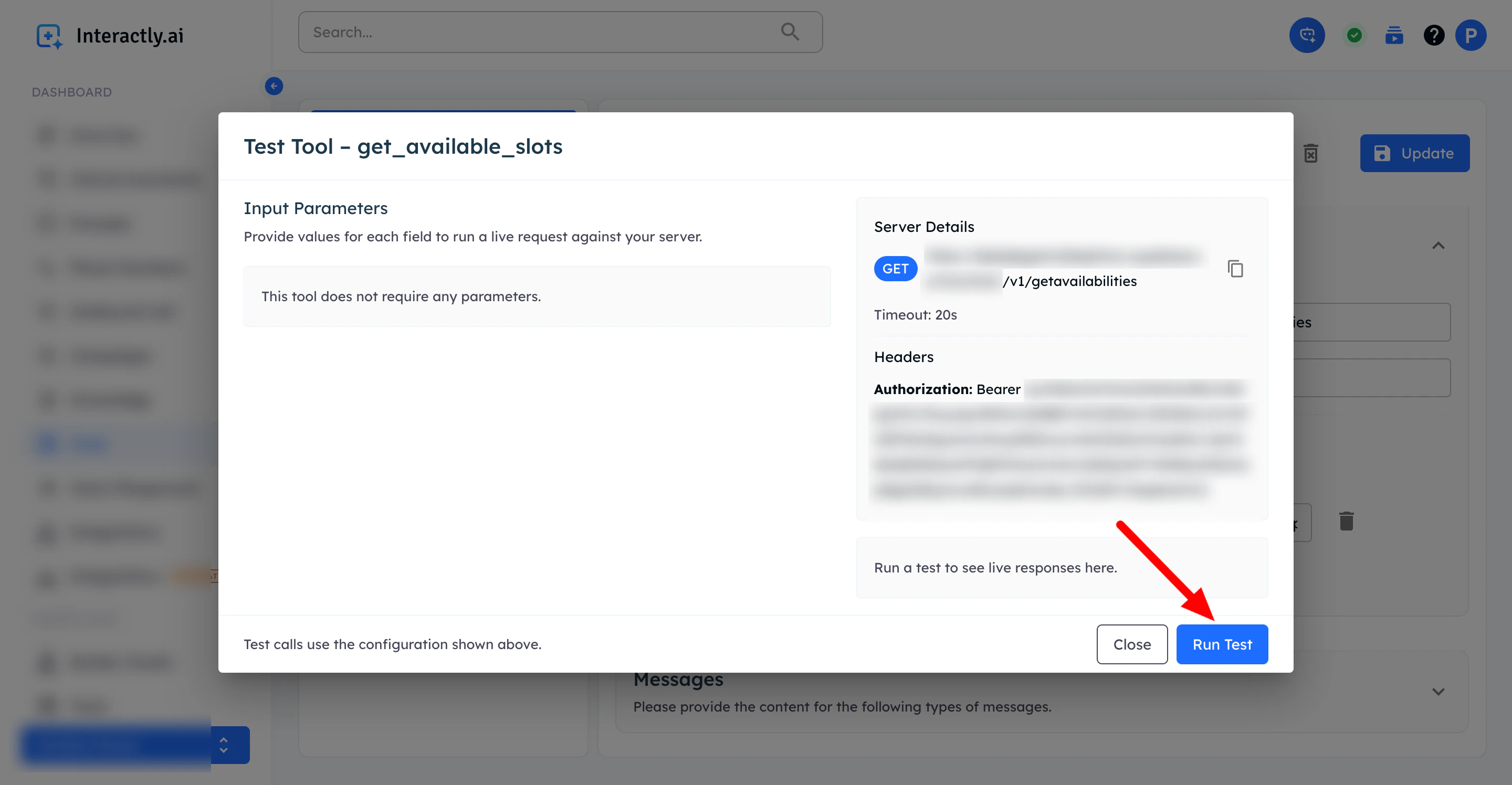
Once all parameters are filled in, click Run Test to send a request to your server endpoint.
Run test button
4
Review the Response
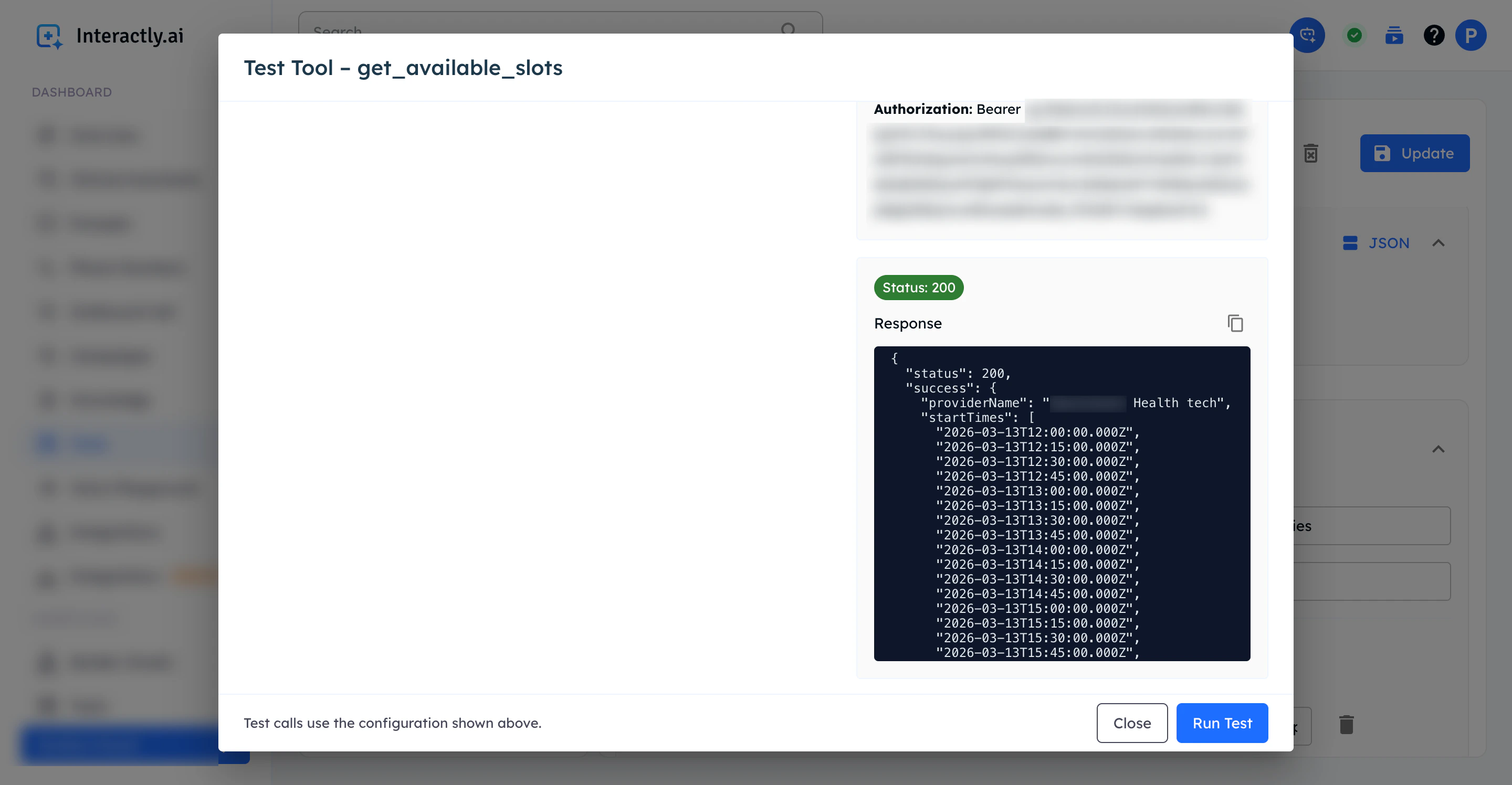
Check the response returned by your endpoint.
Success Response
A correctly configured tool will return a 200 status with the expected payload from your server.
Successful tool response
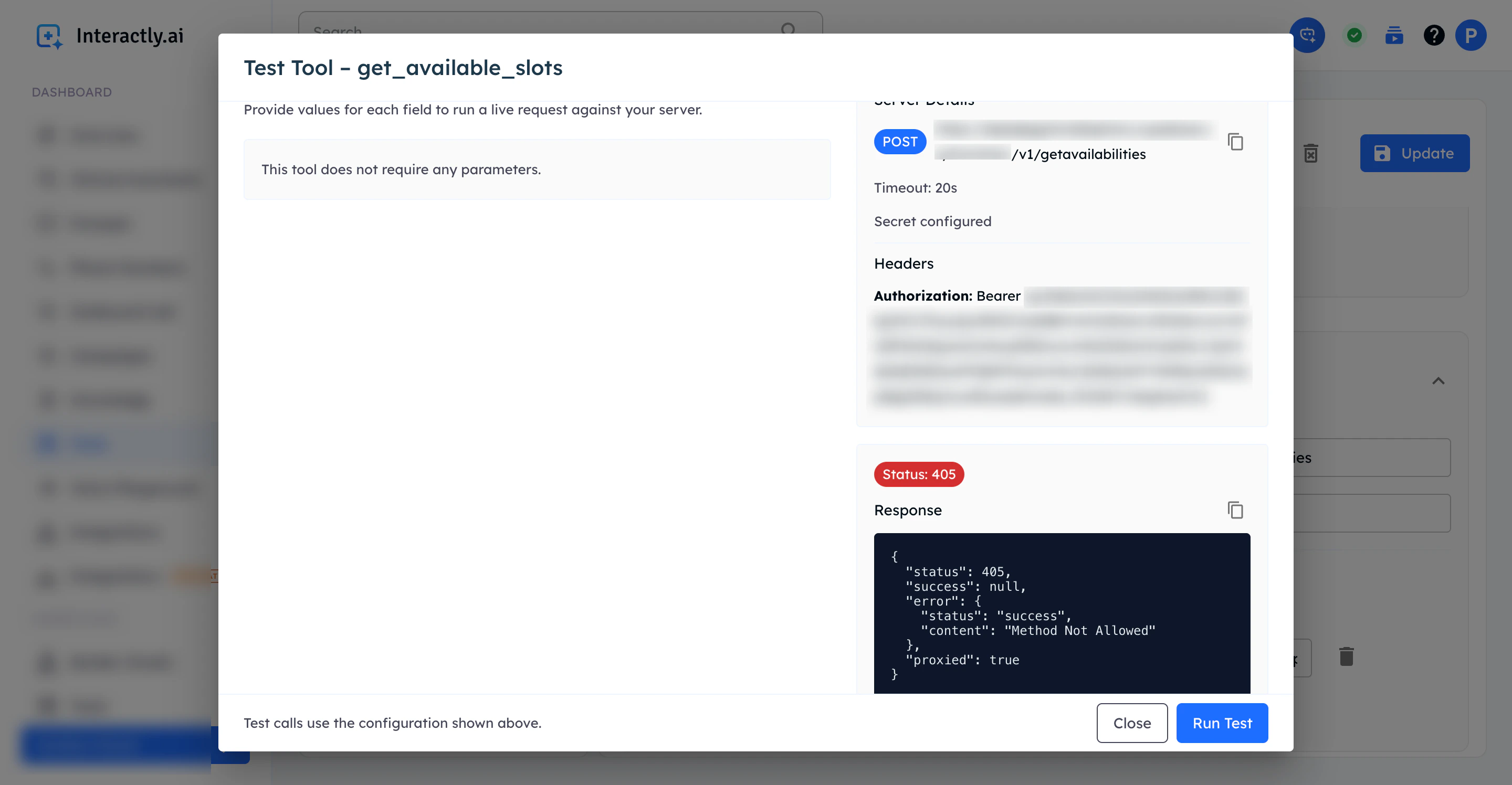
Wrong Method Error
If your endpoint does not accept the HTTP method being used (e.g., sending GET instead of POST), you will see a method-not-allowed error like below.
Wrong HTTP method configuration
Fix: Go back to your tool’s server configuration and ensure the correct HTTP method (e.g., POST) is selected.
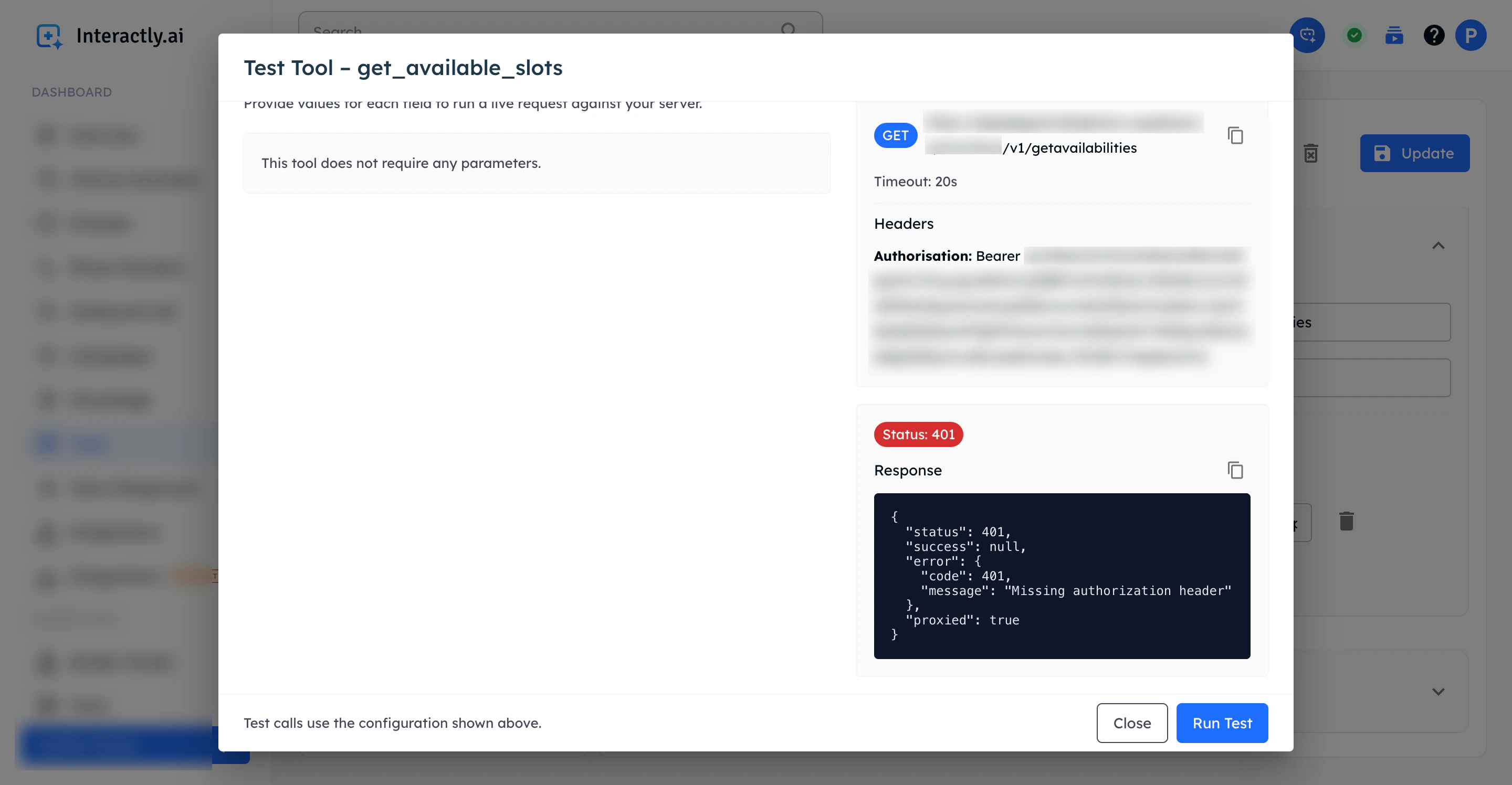
Wrong Authorization Header
A common mistake is using authorisation instead of authorization in the header key. This causes authentication to fail.
Wrong authorization header spelling
Fix: In the Headers section of your tool, ensure the key is spelled authorization (not authorisation).