

Webhook configurations are set at the assistant level, meaning each assistant can have its own webhook server configuration that will be applied to all calls made using that assistant.
How Webhooks Work
When you enable webhooks for an assistant, Interactly will make HTTP POST requests to your specified webhook URL whenever subscribed events occur during calls. This enables you to:- Track call status changes in real-time
- Receive conversation transcripts as they happen
- Get notified when calls end
- Handle errors and hang-up scenarios
- Process end-of-call reports with analytics
Supported Events
Interactly provides 5 comprehensive webhook events to keep you informed about every aspect of your voice calls:Status Update
Real-time notifications when call status transitions between queued, ongoing, finished, or forwarded states.Triggers: Per status change
Conversation Update
Live feed of every message exchanged between users and assistants during active calls.Triggers: Per message
End of Call Report
Comprehensive analytics package including call summaries, recordings, and performance metrics.Triggers: Once per call
Hang Detection
Immediate alerts when your assistant fails to respond within the 5-second timeout window.Triggers: When timeout occurs
Error Monitoring
Instant notifications for LLM processing errors and speech-to-text failures.Triggers: Per error occurrence
Each event type provides detailed payload data to help you build robust integrations and monitoring systems.
Webhook Configuration
You can configure webhooks in two ways:Via Dashboard UI
- Go to your Interactly dashboard
- Select “Clinical Assistants”
- Create new assistant or select an existing one
- Navigate to “Advanced Tab”
- Scroll to “Server Configuration” and enable webhooks
- Configure your webhook URL, headers, and event subscriptions
- In “Server Messages” section, select the events you want to receive
- Click “Update Assistant”
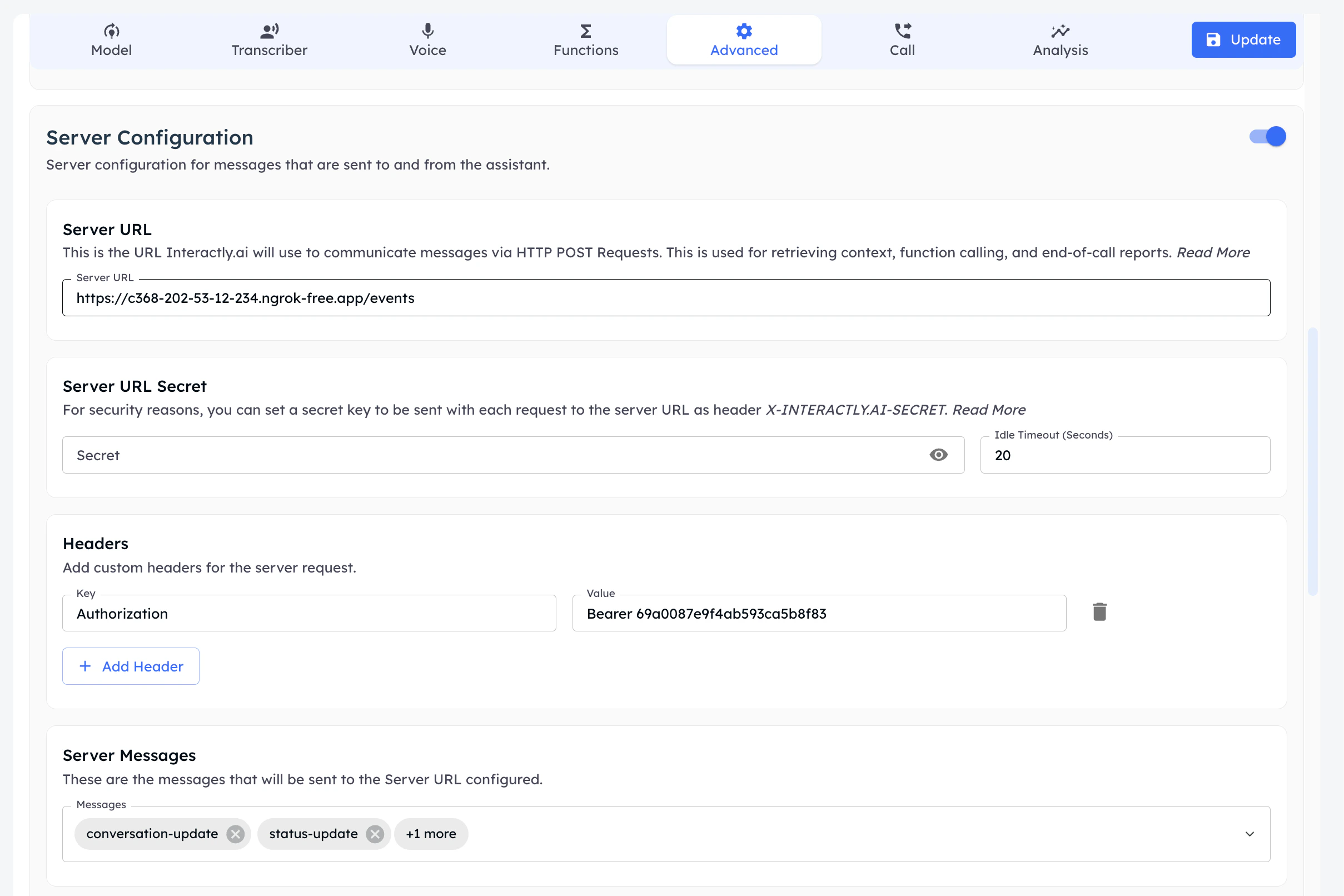
Setting server URL at the assistant level.
Via API
Configure webhook settings when creating or updating assistants using theassistantServer field:
Refer: assistant creation (or via an update) you can set the assistant’s server URL.
Configuration Fields
Security Considerations
Authentication Headers
Use theheaders field to add authentication tokens:
Secret Verification
When you provide asecret value, we’ll include an x-interactly-secret header in all webhook requests:
Delivery Guarantees
Ensure your webhook endpoint:- Returns HTTP 200-299 status codes for successful processing
- Responds within the configured timeout period
- Handles requests idempotently
- Has proper error handling and logging
Common Webhook Patterns
Event Processing
Error Handling
Next Steps
Event Reference
Explore detailed documentation for each webhook event type
Testing Setup
Set up a local webhook server for testing with ngrok
Getting Help
If you need assistance with webhook configuration:- Check our testing guide for local development setup
- Review the event reference for detailed payload specifications
- Contact support for configuration assistance