

About
Assistant tools extend your AI assistant’s capabilities by enabling custom integrations, actions, and data access. Create powerful, interactive AI experiences by connecting your own APIs, business logic, and services directly into your assistant’s conversation flow.What are Custom Tools?
Custom tools allow you to integrate your own business logic, APIs, and services directly into your AI assistant’s workflow through function calling. Your assistant can intelligently decide when to call your tools based on conversation context, execute your custom logic, and use the results to provide dynamic, data-driven responses.Key Benefits
Enhanced Capabilities
Enhanced Capabilities
- Extend functionality: Go beyond basic conversations
- Access external data: Connect to APIs and databases
- Process complex tasks: Analysis, calculations, and transformations
- Real-time information: Access current data during calls
Flexibility & Control
Flexibility & Control
- Mix and match: Use multiple tools together
- Custom logic: Implement your specific business rules
- Dynamic responses: Adapt based on tool outputs
- Seamless integration: Tools work within conversation flow
Professional Use Cases
Professional Use Cases
- Customer service: Access customer records during calls
- Appointment scheduling: Real-time calendar integration
- Data analysis: Process and interpret information on the fly
- E-commerce: Check inventory, process orders, update statuses
How Custom Tools Work
Define Your Tool
Tool Definition
- Name: Unique identifier for your function
- Description: What the tool does (helps AI know when to use it)
- Parameters: Input fields with types and descriptions
- Required fields: Specify which parameters are mandatory
AI Decides When to Call
Execute Your Logic
AI Uses the Response
Custom Tool Use Cases
CRM Integration
CRM Integration
- Fetch customer information
- Update contact records
- Log call notes
- Retrieve purchase history
Appointment Management
Appointment Management
- Check availability
- Book appointments
- Send confirmations
- Handle rescheduling
Inventory & Orders
Inventory & Orders
- Check product availability
- Process orders
- Track shipments
- Update order status
Authentication & Verification
Authentication & Verification
- Verify customer identity
- Check account status
- Validate credentials
- Access permissions
Creating Custom Tools
Access Tools Configuration
- Navigate to your Interactly dashboard
- Click on Tools in the sidebar
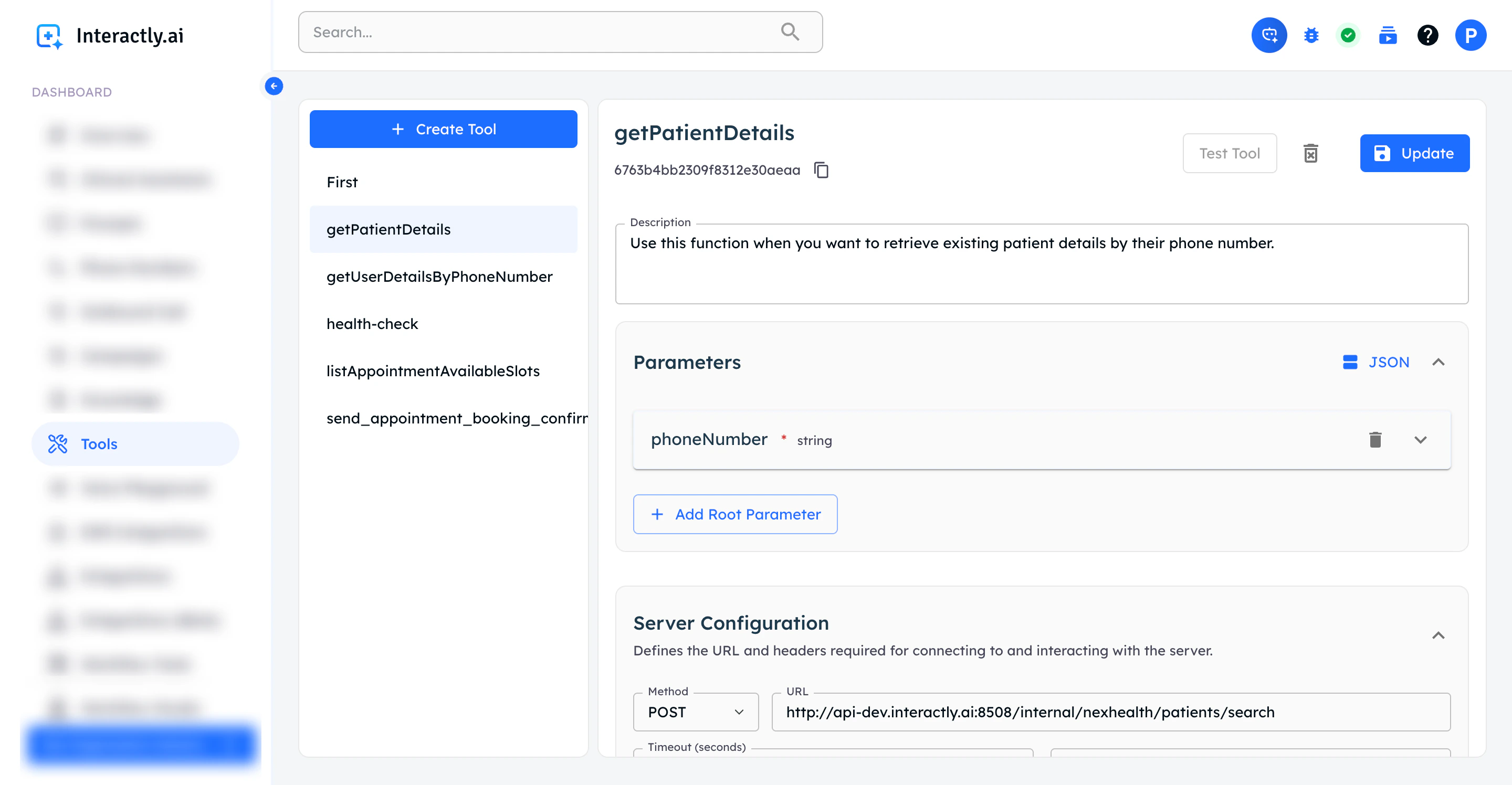
Assistant dashboard navigation
Add Custom Tool
- Click Create Tool in the Custom Tools section
- Configure your tool with the following:
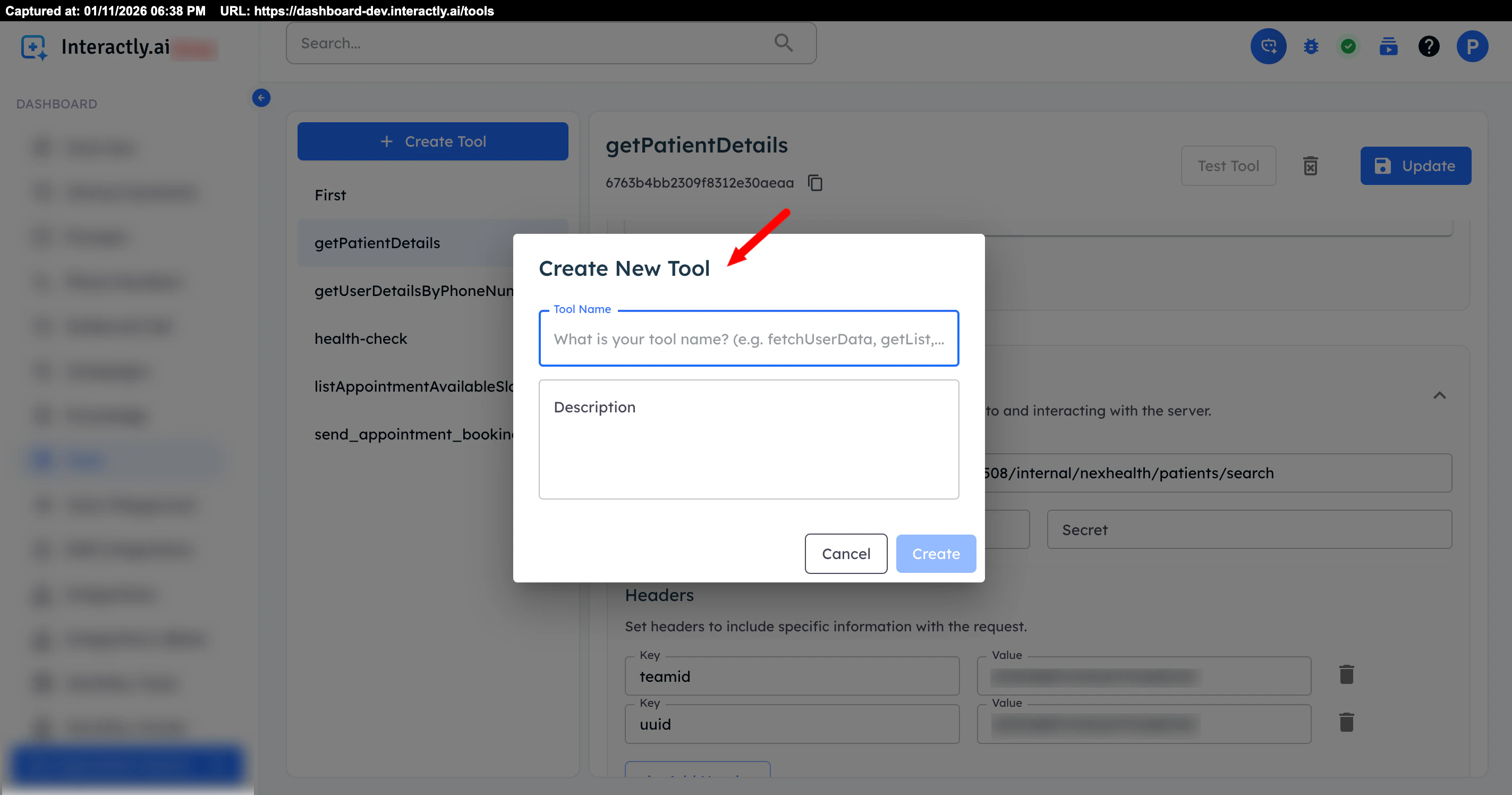
Add custom tool button
Configure Tool Details
Basic Information
Basic Information
- Use clear, descriptive names (e.g.,
get_customer_info,book_appointment) - Follow naming conventions (lowercase, underscores)
- Make it identifiable and unique
- Explain what the tool does
- Include when it should be used
- Be specific - this helps the AI choose correctly
- Example: “Retrieves customer information including contact details, purchase history, and account status based on customer ID or phone number”
Parameters Configuration
Parameters Configuration
- Name: Parameter identifier
- Type: string, number, boolean, object, array
- Description: What this parameter represents
- Required: Toggle if mandatory
- name: “customer_id”
- type: “string”
- description: “The unique identifier for the customer”
- required: true
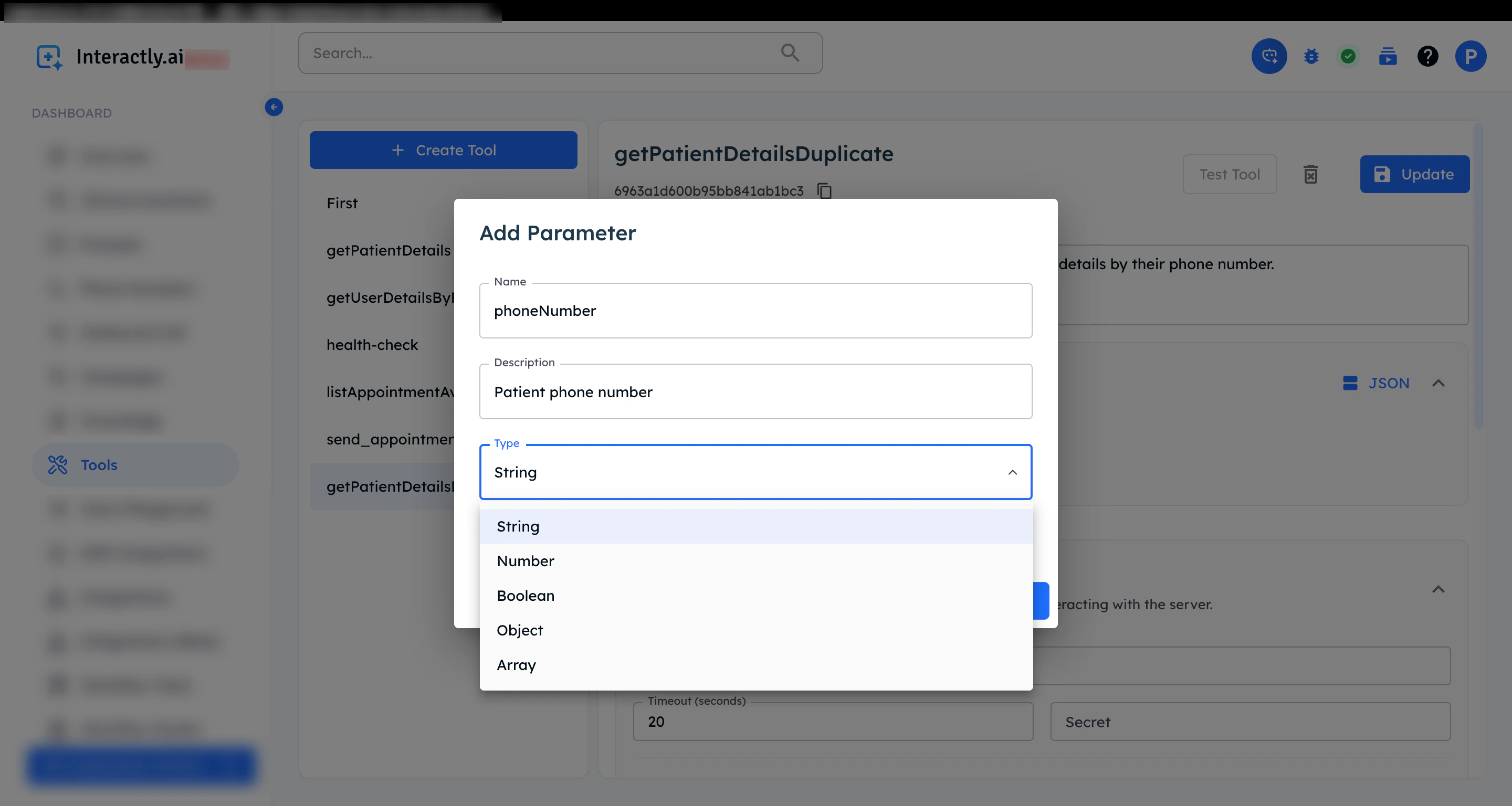
Tool configuration form
Add Root Parameters
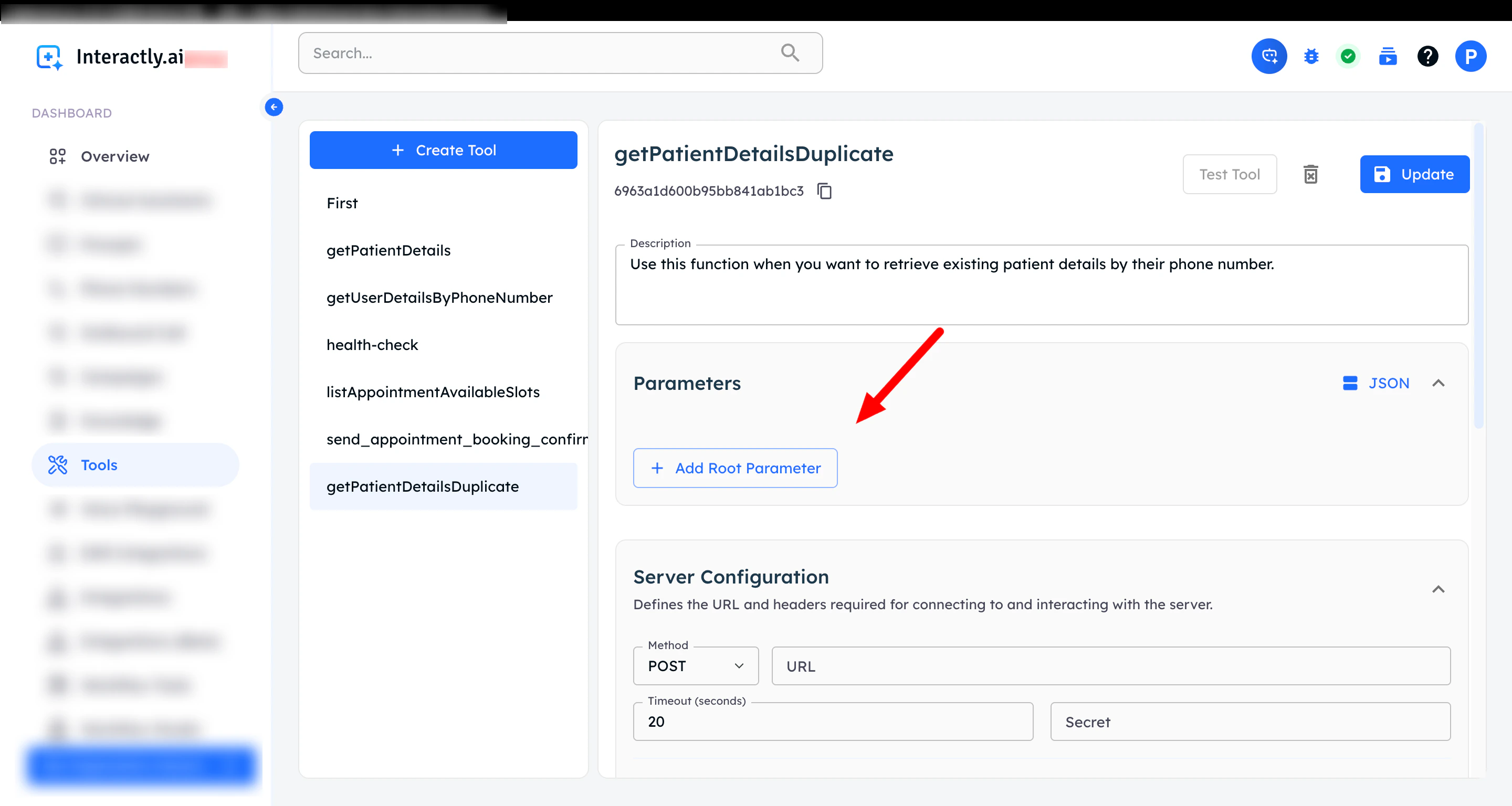
Add parameter button
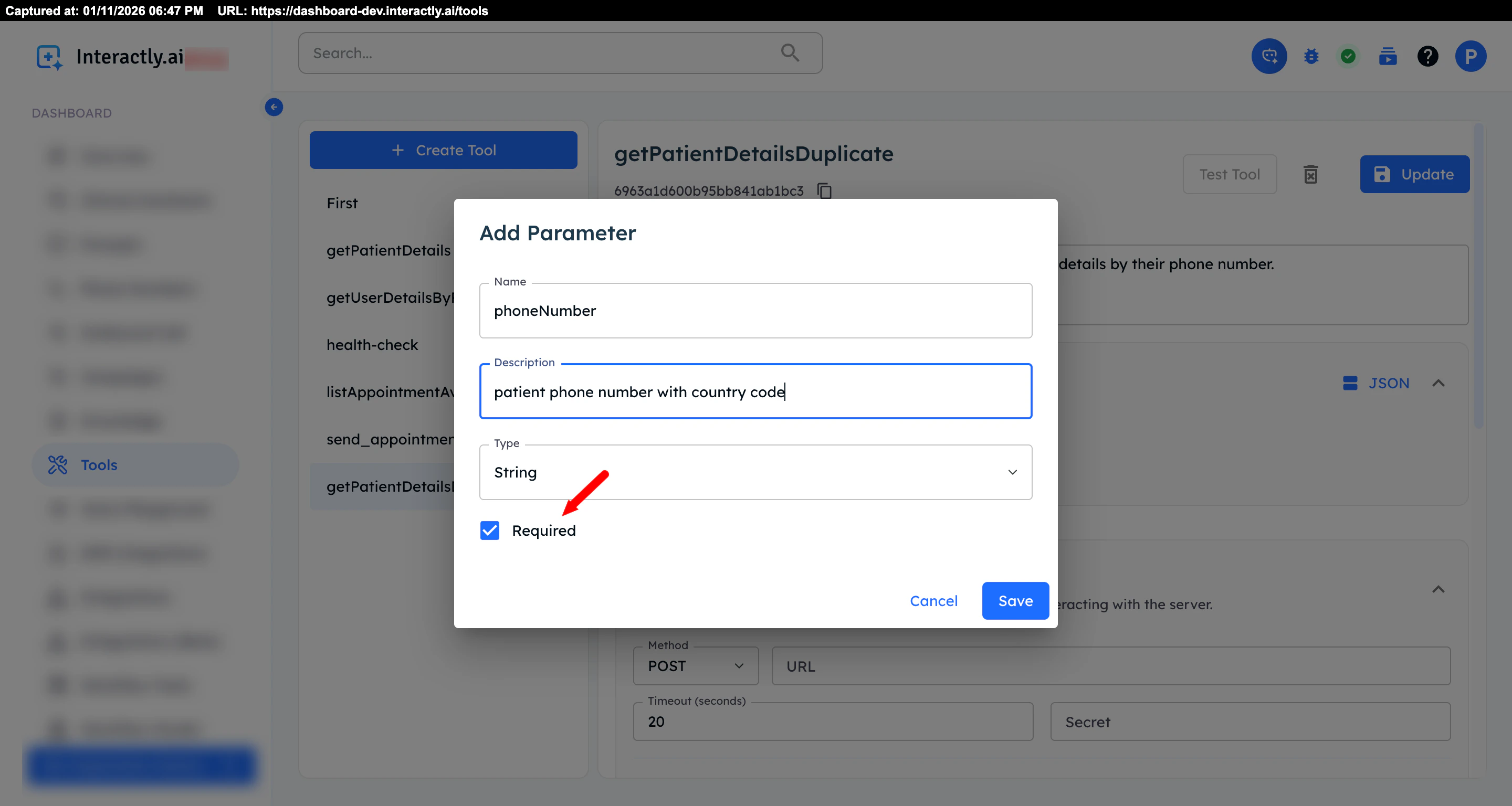
Adding root parameters
Parameter Best Practices
- Be descriptive: Clear descriptions help the AI extract correct values
- Use appropriate types: Match data types to your expected inputs
- Mark required fields: Ensure critical data is always provided
- Save: Save each parameter after adding
Server Endpoint Configuration
- Add the URL of your server endpoint that will process tool calls
- Ensure your endpoint serves with correct method (e.g., POST)
- Set the timeout and authentication as needed
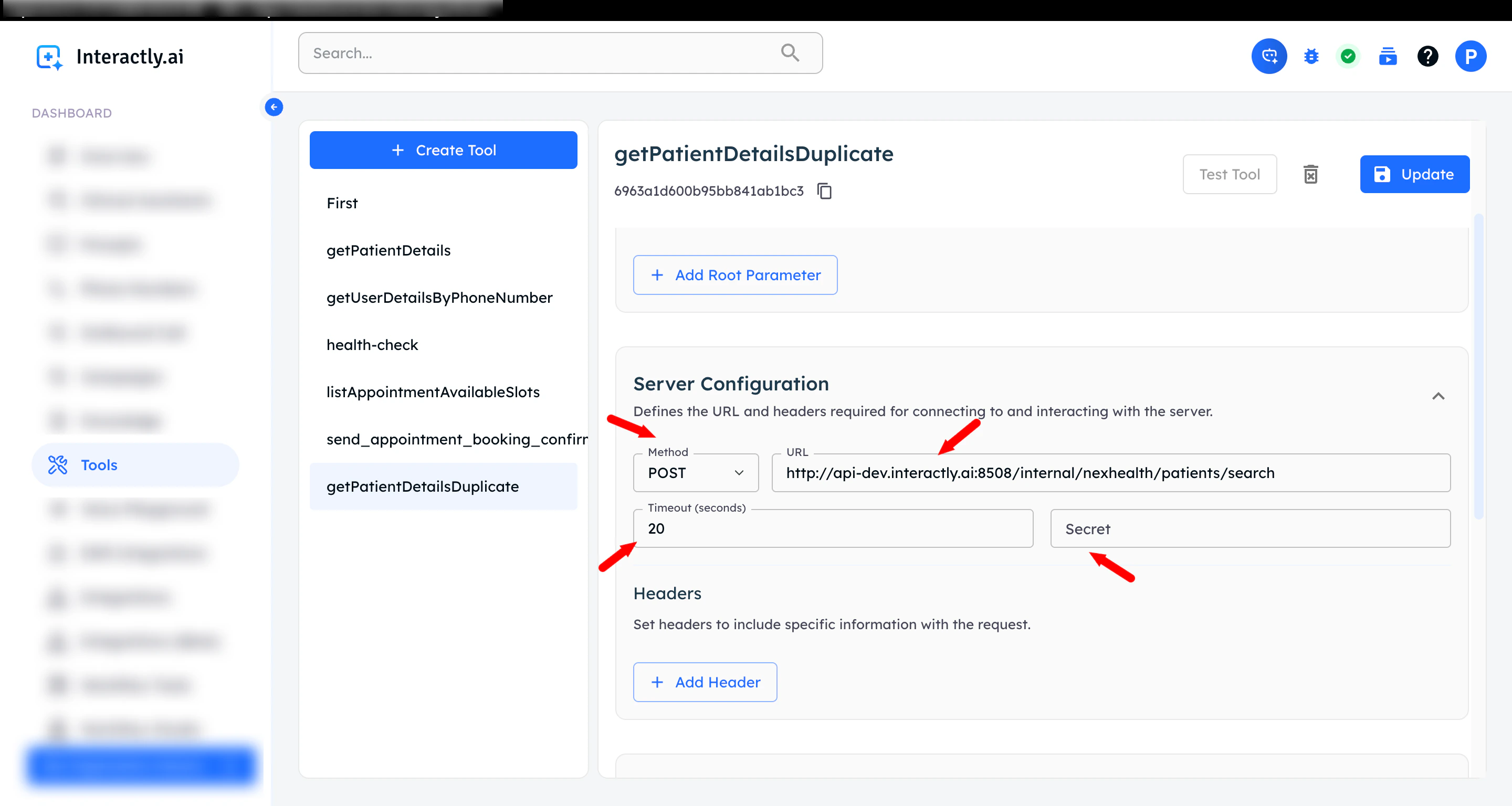
Server configuration
Configure Headers (Optional)
- Expand the Headers section
- Add header key-value pairs for:
- API authentication tokens
- Content-Type specifications
- Custom headers required by your API
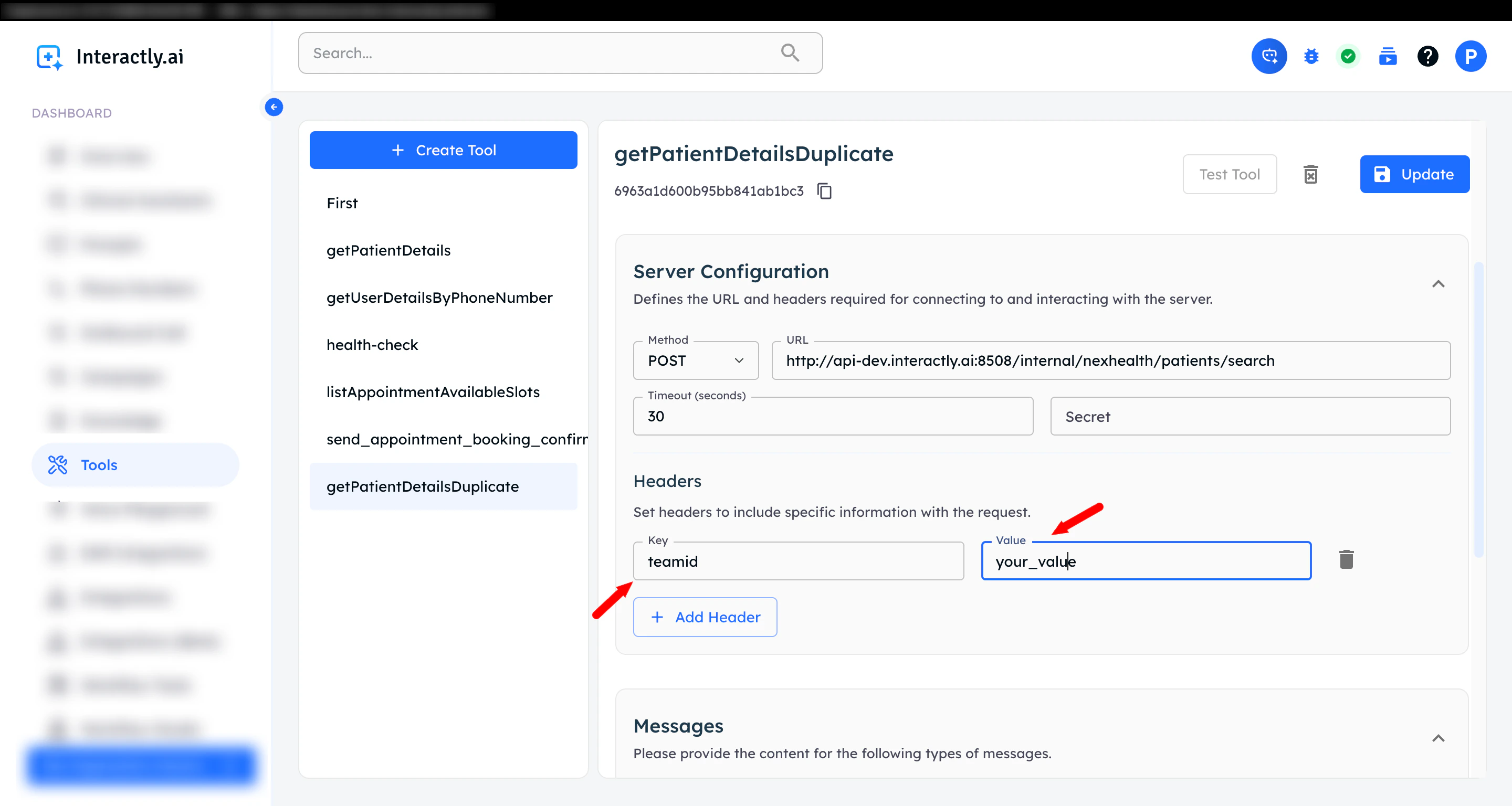
Header configuration
Review and Save
- ✅ Function name is clear and unique
- ✅ Description accurately explains functionality
- ✅ All required parameters are defined
- ✅ Parameter types are correct
- ✅ Headers are configured if needed
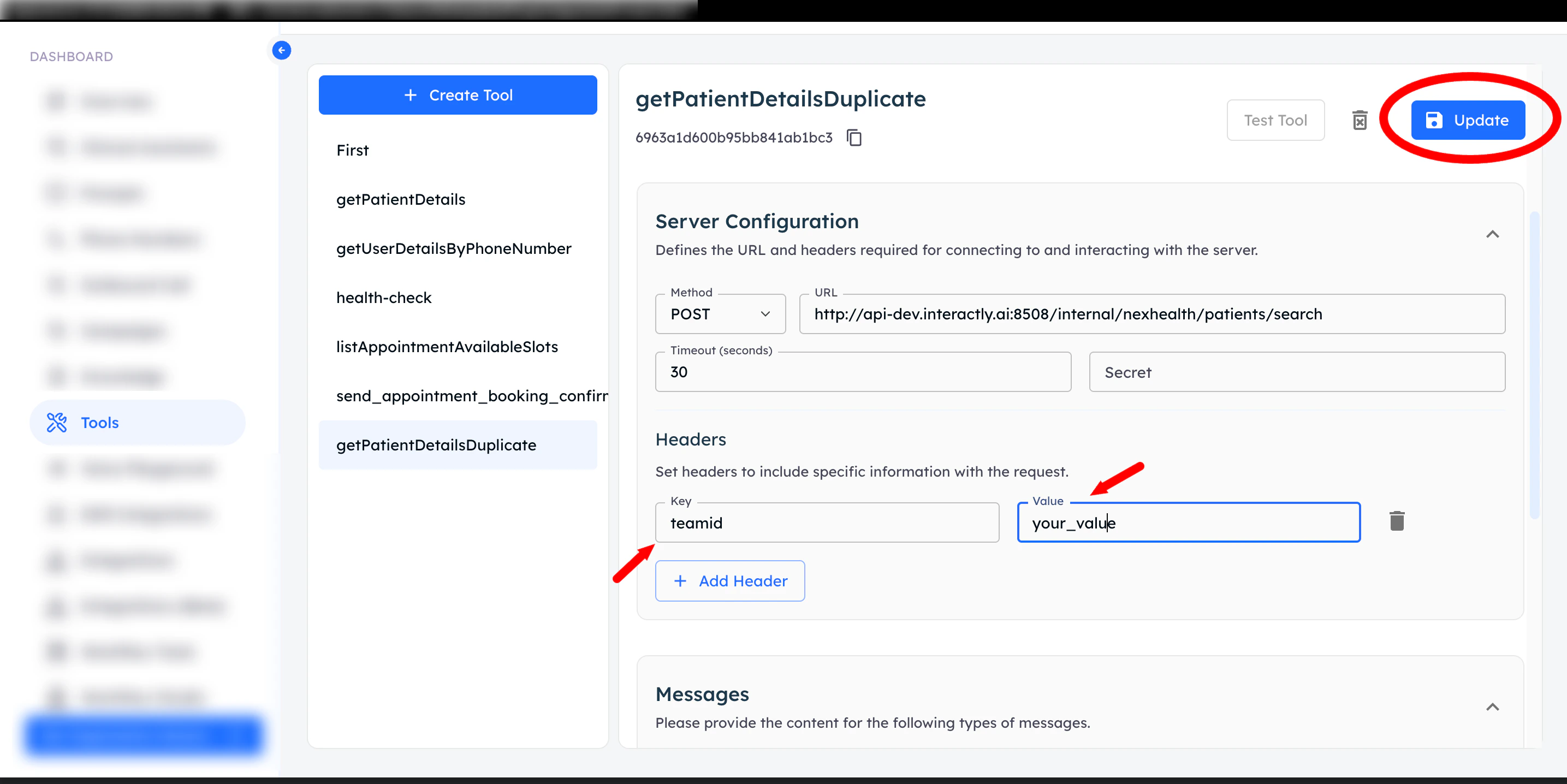
Update tool button
Manage Your Tools
- Edit: Update tool configuration
- Delete: Remove unused tools
- Enable/Disable: Toggle tool availability
- Test: Verify tool functionality
Assign Tools to Assistants
- Naviagate to Clinical Assistants section
- Select your assistant
- Go to the Functions tab
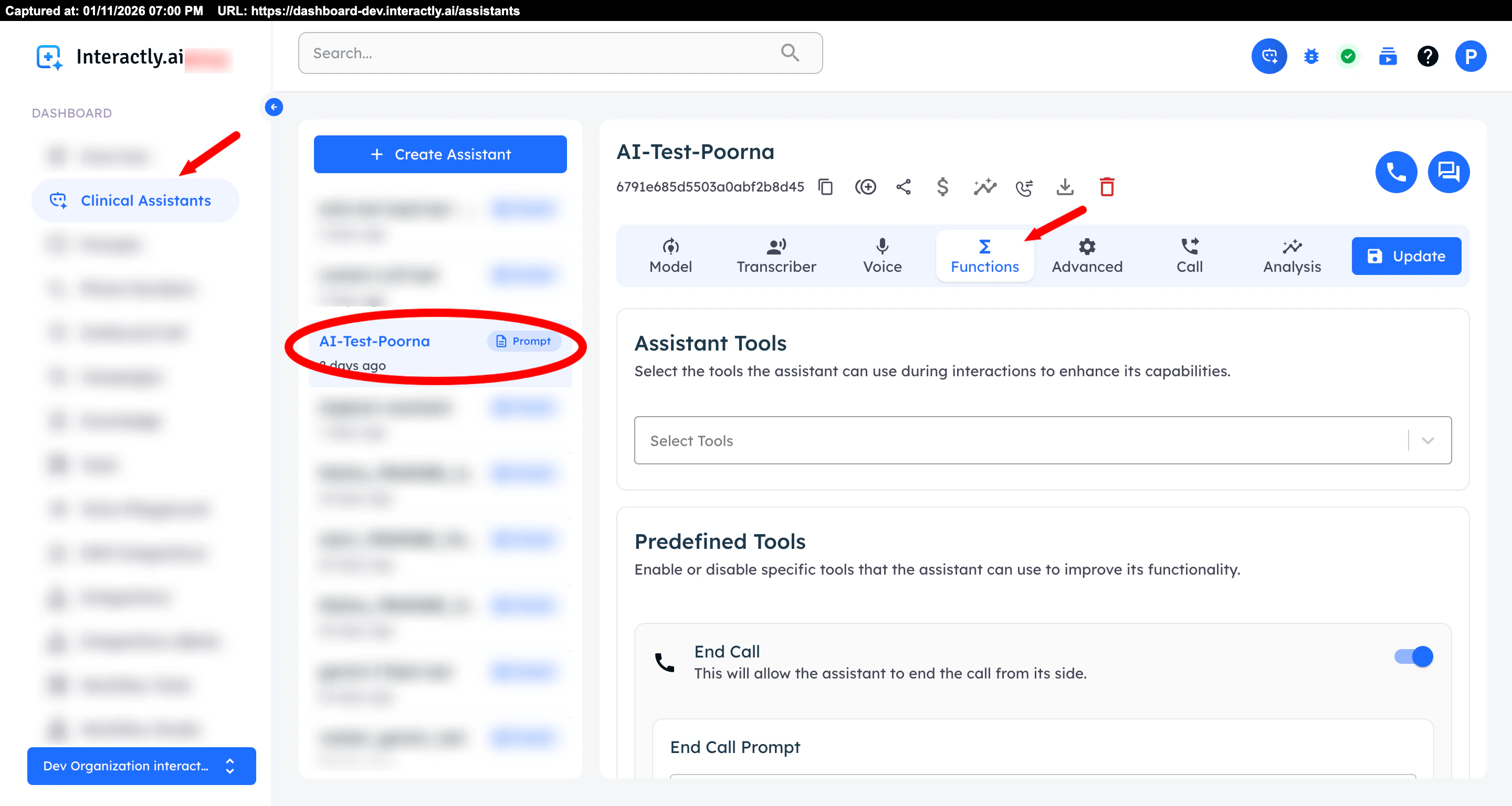
Editing tool configuration
Select Tools for the Assistant
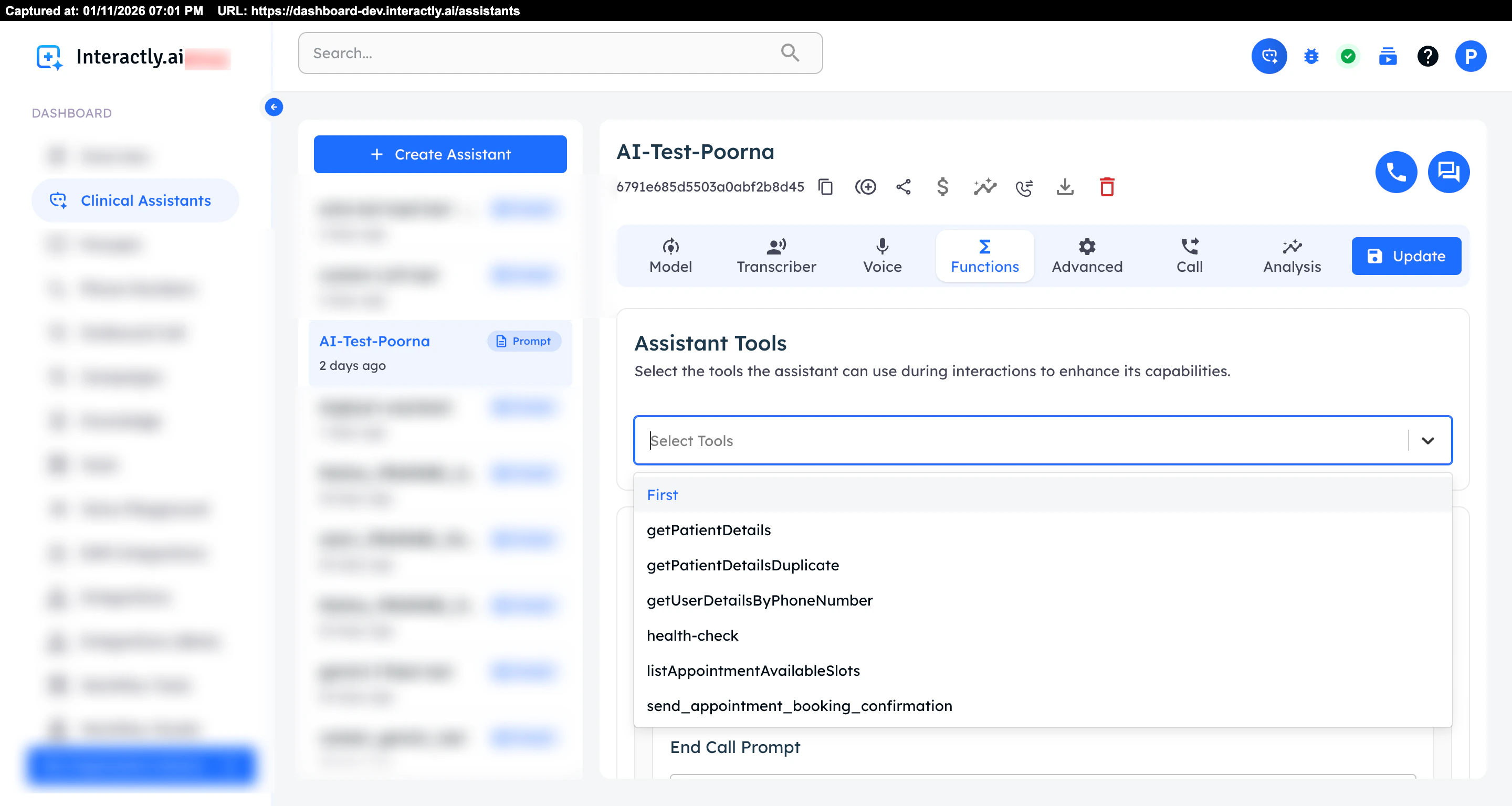
All available tools
- List of tools: You can assign multiple tools to one assistant
- Select Tools: select which tools to enable for this assistant
Update Assistant
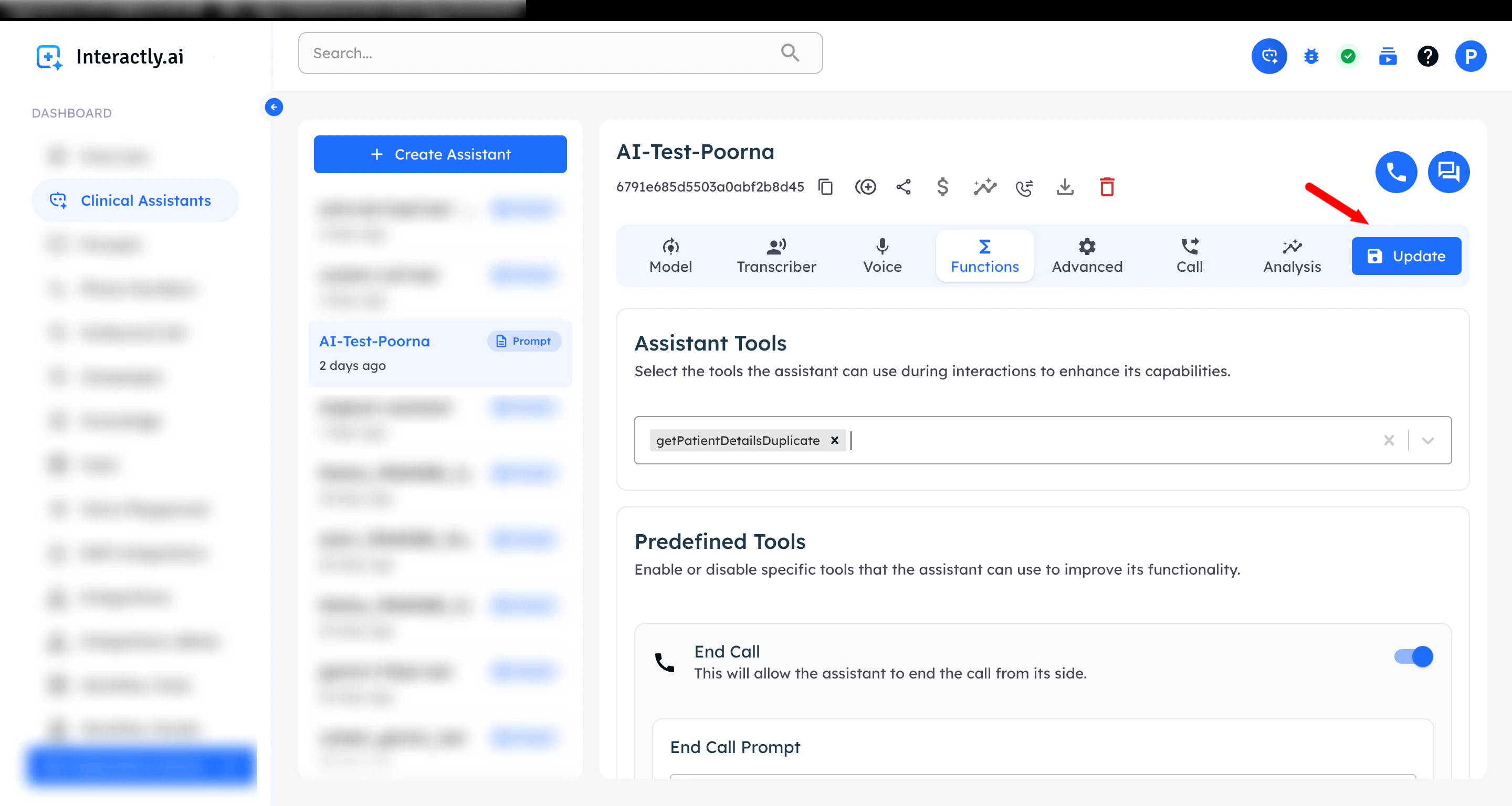
Update assistant with selected tools
- Update Assistant: Click Update to save changes
Tool Execution Flow
Understanding how tools work during conversations:User Makes Request
AI Identifies Need
Parameters Extracted
- User-provided information
- Previous conversation context
- Assistant’s knowledge base
Tool Called
Logic Executes
- Validates parameters
- Performs necessary operations
- Queries databases or APIs
- Generates response data
Results Returned
AI Responds Naturally
Best Practices
Tool Design
Tool Design
- Each tool should do one thing well
- Avoid combining too many functions
- Make tools reusable across assistants
- Explain exactly what the tool does
- Include when to use it
- Mention limitations if any
- Only request essential information
- Use descriptive names and descriptions
- Provide sensible defaults when possible
Error Handling
Error Handling
- Return helpful error messages
- Guide the AI on what went wrong
- Suggest alternative actions
- Validate all inputs
- Check for required parameters
- Verify data types and formats
- Set reasonable timeouts
- Handle slow responses gracefully
- Provide status updates for long operations
Security
Security
- Use secure headers for API keys
- Implement proper authorization
- Validate requests server-side
- Never expose sensitive data unnecessarily
- Sanitize inputs and outputs
- Follow data privacy regulations
- Implement rate limits
- Handle quota exhaustion
- Monitor tool usage
Testing
Testing
- Test all parameter combinations
- Verify error handling
- Check edge cases
- Track response times
- Log errors and failures
- Analyze usage patterns
- Gather feedback from conversations
- Refine tool descriptions
- Optimize parameters based on actual usage
Common Use Case Examples
Example 1: Customer Lookup Tool
Example 2: Appointment Booking Tool
Example 3: Order Status Tool
Troubleshooting
Tool Not Being Called
Tool Not Being Called
- Description isn’t clear enough for AI to understand when to use it
- Parameters aren’t well-defined
- Tool name is ambiguous
- Improve tool description with specific use cases
- Add examples in parameter descriptions
- Test with different conversation scenarios
- Ensure tool name reflects its purpose
Parameter Extraction Issues
Parameter Extraction Issues
- Parameter descriptions are vague
- Required information not available in conversation
- Type mismatches
- Make parameter descriptions more specific
- Mark optional parameters appropriately
- Provide format examples in descriptions
- Ensure conversation flow gathers needed info
Tool Execution Errors
Tool Execution Errors
- Backend endpoint not responding
- Authentication failures
- Invalid parameter values
- Verify endpoint URL is correct
- Check header authentication
- Implement proper error responses
- Add logging to debug issues