

v1.17.7
What’s new in v1.17.7
🚀 Updates & Improvements🤖 AI Models & Voice
- Broader Gemini support — Added Gemini 3.5 Flash and additional real-time/Audio model variants, improved model selection logic, thought-signature tracking, and assistant thinking-budget configuration (including a fix for thinking-budget not saving on new assistants).
- Native streaming improvements — Rolled out native response streaming for more model providers with a proactive fallback path, plus sequential LLM fallback groups for more resilient model selection.
- Named LLM configurations — Teams can create and manage reusable, named LLM configs with team-level defaults and per-node overrides.
🎙️ Voice, TTS & Telephony
- Telnyx warm transfer & call forwarding — Telnyx calls now support warm transfers and call forwarding, alongside workflow-level call-forwarding detection.
- New Deepgram voices — Added TTS voices for more languages, a specialized medical STT model for self-hosted transcription, and adjustable Aura 2 speech speed (0.7x–1.5x) for English and Spanish.
- Streaming reliability fixes — Smoother call termination and barge-in handling mid-stream, fixed background sound playback during streamed calls, and resolved Vonage audio streaming issues.
- Updated ElevenLabs & Cartesia — Improved ElevenLabs streaming reliability with concurrency tracking, and an updated default Cartesia voice model for better quality.
🔄 Workflows
- Favorites & filters — Mark workflows as favorites and filter/search by creator, favorites, or workflow ID.
- More reliable conditions — Fixed condition expressions with quotes evaluating incorrectly.
- Runtime language variable — Workflow nodes can reference the conversation’s language at runtime.
- Better diagnostics — Improved tracking for calls that end or error out mid-workflow.
🏥 Integrations (EHR / Scheduling)
- Scheduling accuracy fixes — Resolved several appointment scheduling/rescheduling issues (date/time handling, patient gender field, coverage eligibility, slot references).
- Patient appointments support — Added EHR gateway support for retrieving patient appointments directly.
- Richer coverage details — Coverage lookups now include payor name and additional plan details.
- Faster imports — Bulk integrations imports now run in the background to prevent timeouts on large imports.
- Scheduling page — The web scheduling flow now displays privacy policy and terms of service links.
💬 SMS
- New SMS sending API — Added a public API for sending SMS messages, with rate limiting to prevent abuse.
- Log lookup & tracking — Retrieve SMS logs by ID, with improved tracking for inbound and outbound messages, and SMS logs now configurable as a user role feature.
📣 Campaigns
- Soft delete — Deleting a campaign or call now soft-deletes it; hard deletion is restricted to admins.
- Pause policy groundwork — Added evaluation logic for automatically pausing campaigns based on policy rules.
- Removed auto-timeout — Campaigns no longer time out automatically after a few hours.
- Enhanced webhooks — Improved webhook support for campaign events.
- Cloning fix — Cloning a campaign no longer fails when a source call has a missing or empty outcome.
📊 Analytics & Usage
- Organization usage stats — Added monthly per-organization usage tracking (calls and minutes), with a read API and scheduled reporting.
- Outcome-based filtering — Conversations can now be filtered by empty/null/missing outcome, outcome stats support more filter options, and a new endpoint returns conversation stats grouped by outcome.
- Audit log statistics — Added new statistics endpoints for audit logs.
- More accurate call data — Improved end-of-call metadata capture for accurate outcomes, fixed incorrect call duration in stats, and added call duration/cost stats at the assistant level.
- Webhook visibility — Added APIs to view webhook delivery stats and latency.
- Call end attribution — Call end events now record who or what ended the call.
🐛 Bug Fixes & Platform
- Fixed a call-pricing issue where missing data could cause errors in cost calculations.
- Reduced server startup CPU load and optimized several backend queries (tag-based stats, workflow run cleanup).
- Fixed a communication preferences issue, an internal ID-handling bug in the admin service, and a caching serialization issue.
- Reduced unnecessary text-to-speech calls for silent responses, improving latency.
- Added TTS streaming performance metrics.
v1.16.6
What’s new in v1.16.6
🚀 Updates & Improvements🔄 Workflows — Now Live for Assistant Calls
Workflows are now generally available for assistant-driven voice calls. You can build multi-step, branching conversation flows that execute deterministically alongside live calls — replacing single-prompt assistants with structured, auditable pipelines.What’s new in the workflow engine
- Conditional Exit Edges & Global Routing — Super nodes now support conditional exit edges, reverse edges, global routing, and guardrail propagation for fine-grained control over conversation branching and escalation paths.
- Guardrail Strike System — Automatic guardrail-strike counting with configurable escalation thresholds and auto-finish behavior prevents runaway conversations.
- Resume from Any Node — Workflows can be resumed from any node with an initial state context, enabling retry and recovery flows without a full restart.
- Workflow Lock — Lock a workflow to prevent concurrent modification while it is in active use.
- Field Extractor Node — Extract structured fields from unstructured data using the new Field Extractor node (Data Transformation category).
- Deduplicate Node — Remove duplicate records in data pipelines using the new Deduplicate node (Data Extraction category).
- Dynamic Messages on Conditional Edges — Conditional edge transitions can trigger dynamic narration messages for smoother conversational transitions.
- Warm-Transfer Context — Transferred calls now receive full conversation history and runtime tool hydration.
- Stateful REST Execution — A stateful turn-by-turn REST endpoint supports non-voice (REST-driven) workflow execution.
- Multi-Version Export/Import — Workflows can be exported and imported as versioned bundles for backup, migration, and deployment.
- Workflow Run Metrics — LLM latency, token usage, and operational metrics are captured per workflow iteration and per parallel condition evaluator.
Bandwidth Deprecation Notice
Deprecation Notice: Bandwidth telephony support will be deprecated in a future release. Please migrate your numbers to Twilio, Vonage, or Telnyx.
📞 Telnyx Telephony Support
Telnyx is now a fully supported telephony provider for inbound and outbound voice calls.- Inbound & Outbound Calls — Full call handling via Telnyx TeXML applications.
- Call Recording — Recordings are stored automatically for Telnyx calls.
- Number Management — Import Telnyx phone numbers and manage call hooks directly from the dashboard.
🔁 Twilio Warm Transfer (Human Agent Handoff)
Outbound calls forwarded via Twilio now support warm transfer — a three-way handoff that lets an agent speak with the human recipient before the caller is connected.- Bi-directional context passing so the receiving agent has full conversation history.
- Configurable timeouts and caller ID fixes.
- Welcome messages are suppressed during warm transfer to avoid confusing the receiving party.
- Calls can be recorded through the entire warm-transfer flow.
📊 Assistant Analysis — DND & Callback
Two new analysis sections have been added to post-call conversation analytics:- DND (Do Not Disturb) — Surfaces DND signals detected during the call with configurable expiration windows and timezone-aware logic.
- Callback — Tracks callback intent and scheduling outcomes, including automatic campaign-based callback scheduling after analysis is generated.
🎙️ Voice Engine — Cartesia & Deepgram TTS Streaming
New streaming TTS providers are now available:- Cartesia TTS Streaming — Streaming audio generation using Cartesia’s latest models, with built-in retry logic.
- Deepgram TTS Streaming — Deepgram TTS now streams audio with full web-call integration, barge-in support, caching, and retries.
🗣️ Deepgram Multilingual STT — Flux Multi Model
The Deepgram Flux Multi model is now available as a selectable speech-to-text option, bringing multilingual speech recognition to assistants that serve non-English speakers.👤 User Management — Developer Role
A new Developer role has been added to the role hierarchy, sitting between User and Admin.Role hierarchy
What developers can do
What developers cannot do
Admins retain full control over sensitive configurations — credentials, API keys, user management, and organization-level settings remain restricted to Admin and above.
🔒 Workflow & Assistant Lock
Both workflows and assistants can now be locked to prevent concurrent edits while they are in active use.- Lock/unlock via a dedicated API (admin users only).
- Full audit trail for lock state changes.
🐛 Bug Fixes & Enhancements
- Fixed a race condition where concurrent requests could silently overwrite conversation update data.
- Fixed the hold command (
playAndBargein) not behaving correctly in certain playback states. - Fixed audio being incorrectly stopped on dialout after a hold or during background sound playback.
- Fixed post-call transcript speaker labels being incorrectly assigned.
- Added automatic retries and duplicate-prevention for failed post-call transcript processing.
- Fixed ElevenLabs WebSocket streaming reliability including background sound handling.
- Fixed Twilio bulk schedule call 500 errors.
- Added strict Twilio webhook signature validation.
- Upgraded aiohttp, cryptography, litellm, and libssl3/curl to address known CVEs.
v1.13.0
What’s new in v1.13.0
🚀 Updates & Improvements🎙️ Voice Engine
Upgrades to TTS, realtime voice, and call performanceDynamic TTS Speed Control
You can now control TTS playback speed dynamically at runtime via commands. Speed values are validated before being applied, preventing out-of-range values from causing unexpected audio behavior.Deepgram TTS WebSocket Support
Deepgram TTS is now available over WebSocket, including full webcall integration. This improves reliability and reduces latency for Deepgram-powered voice playback.Advanced Voice Configurations
Support forgpt-realtime-1.5 has been added, along with exposed advanced realtime voice settings that were previously inaccessible. These settings allow fine-grained control over realtime voice behavior for assistants using OpenAI’s realtime API.Workflow Performance — Cache Pre-warming
Workflow-based assistant performance has been improved by pre-warming the workflow cache in the background at call creation time. This reduces cold-start latency on the first workflow invocation during a call.Hold Command Bug Fix
Fixed an issue with theplayAndBargein hold command that could cause incorrect call handling behavior when a hold was triggered during active playback.📞 Call Handling & Integrations
Twilio Inbound Callhook
New APIs for retrieving and binding Twilio inbound callhooks are now available. Minor updates have also been made to number management to support inbound callhook configuration.Twilio Signature Validation
Twilio request signature validation has been improved. Rejection of requests with invalid signatures has been temporarily disabled to ensure reliability during the rollout, while the validation logic itself is hardened.Note: Signature rejection will be re-enabled in a future release once validation is fully verified across all inbound traffic patterns.
Active Calls Query Optimization
The active calls query has been fully rewritten to avoid inefficient lookups. This improves performance for teams with a high volume of concurrent calls and reduces database load during peak traffic.📝 Transcripts & Reporting
Offline Call Transcripts
Call transcripts can now be uploaded to S3 after a call ends. This release also adds:- A dedicated transcript download API
- Improved Deepgram response parsing for more accurate transcript data
- A new assistant-level config for enabling post-call transcript generation
Conversation Analysis Enhancements
Two new analysis sections have been added to conversation analytics:- DND (Do Not Disturb) — surfaces DND signals detected during the call
- Callback — tracks callback intent and scheduling outcomes
Bug Fixes
- DND null check — Fixed a null reference error that could occur when a DND object was absent during a DND update operation
🔄 Workflow Service
Significant runtime improvements, new model support, and observability upgradesAnthropic Claude Model Support
Anthropic Claude models are now supported within the workflow framework alongside existing OpenAI and Azure models. Select a Claude model in your LLM node configuration to use it in any workflow.Workflow Node Builders
Pre-built node builders are now available for the following node types, reducing the boilerplate required to add common workflow steps:summary— summarize conversation contextsuccess— mark a workflow run as successfulstructured_data— extract structured output from an LLM responsednd— handle Do Not Disturb detectioncallback— schedule a callback action
Workflow Run Checkpointing
Workflow runs now support checkpointing and state reconstruction. If a run is interrupted, execution can be reconstructed from the last checkpoint rather than restarting from the beginning.Resume Workflows from Any Node
Workflows can now be resumed from any node with an initial state context provided at resume time. This enables retry and recovery flows without requiring a full restart.Workflow Cache Improvements
The workflow cache is now enabled by default. An internal endpoint for manual cache management has also been added for operational use.Redis Caching for Workflows
Redis caching for fully hydrated workflows has been implemented behind a feature flag (disabled by default). When enabled, this significantly reduces workflow load times for frequently-used workflows.In-Memory Workflow Handler
An in-memory workflow handler has been added behind a feature flag. This is intended for environments where low-latency execution is prioritized and external state persistence is managed separately.Evaluation Workflow Run Persistence
Evaluation workflow runs are now persisted to the workflow service, making it possible to review and compare evaluation results over time.Debug Mode Observability
Debug mode now captures individual LLM metrics per node execution, giving developers per-node visibility into model latency and token usage during a workflow run.OpenAI Realtime Support
Support forgpt-realtime-1.5 has been added to the workflow service, along with dynamic Realtime API configuration. This aligns the workflow runtime with the voice engine’s realtime capabilities.Fixes & Dependency Updates
- Fixed timezone expectation handling in workflow execution
- Fixed empty-messages edge case that could cause unexpected LLM behavior
- Improved credential redaction in workflow logs to prevent accidental secret exposure
- Updated dependencies for in-memory workflow runtime:
beanie,langchain,boto3
📣 Conversation & Campaigns
Twilio Throughput Limit
A Twilio throughput limit of 75 MPS has been implemented for sending campaign pre-call messages. This prevents campaigns from exceeding Twilio’s rate limits and causing message delivery failures at scale.Athena Appointment Rescheduling
Appointment rescheduling is now supported for Athena integrations. Assistants can handle rescheduling requests end-to-end through the EHR, in addition to the existing scheduling and cancellation flows.v1.12.0
What’s new in v1.12.0
🚀 Updates & Improvements📣 Campaigns
Retry Mechanism
Full retry policy support is now available for campaigns. This includes:- Retry configuration models
- CRUD APIs for managing retry policies
- Retry logic for individual calls and bulk campaign execution
Contacts Management
A new contacts management module has been added to the campaigns service with dedicated CRUD APIs. Contacts can be created, listed, updated, and deleted independently of campaigns — making it easier to manage reusable contact lists across multiple campaigns.Call Filtering & Statistics
New API endpoints for filtering calls by outcome and retrieving campaign-level statistics are now available. Use these to build dashboards, slice data by outcome or status, and measure campaign performance.v1.11.0
What’s new in v1.11.0
🚀 Updates & Improvements🔁 Workflow Enhancements
Major platform-level upgrades to the workflow engineThis release ships a large set of improvements to the workflow runtime, tooling, observability, and model support.Callback Scheduling
Workflows can now schedule future callbacks via a dedicated API endpoint with full validation. Dynamic variable handling has been extended to support callback scheduling flows, so you can defer execution to a future time without custom workarounds.ToolNode — Direct Tool Execution
A newToolNode node type lets you invoke tools directly within a workflow without routing through an LLM. This is useful for deterministic steps where you want predictable, low-latency execution without incurring an LLM call.GPT-5 & GPT-5.4+ Model Support
reasoning_effort levels. Token usage is tracked uniformly across all LLM providers.OpenAI Responses API
Native support for the OpenAI Responses API is now available with an explicit opt-in flag. Thereasoning_effort parameter is passed through for custom LLM configurations.External API Tool Enhancements
The external API calling tool has been significantly upgraded:- Native response types preserved — responses are no longer cast to string
- Explicit error propagation — errors surface to the workflow instead of being silently swallowed
- HTTP retry support — transient failures are automatically retried
- Dynamic argument substitution — LLM tool arguments can be injected into the URL path, query parameters, and request body
Liquid Template Expressions in Dynamic Variables
Advanced Dynamic Variables
Extended dynamic variable operations with predefined system-level variables, giving workflows access to runtime context such as timestamps, call identifiers, and team metadata.Granular Error Tolerance
Configure per-workflow and per-node error tolerance thresholds so that non-critical failures degrade gracefully instead of aborting the entire run.LLM Latency & Call Tracking
Aggregated LLM latency statistics and call count are now tracked across workflow runs, giving you detailed observability into model performance over time.Vendor Credential Caching
Vendor credentials are now cached using a Redis cache-aside pattern with secure fallback. Credentials are scoped perteam_id, so multi-tenant deployments remain isolated.Workflow Runtime Stability
Improved error handling prevents cascading failures when individual nodes encounter errors.Azure OpenAI Fix
Resolved a validation error triggered by a missingapi_version field in Azure OpenAI chat configurations.UI Ordering in System Prompt
Added UI ordering metadata and a special field type to system prompt configuration for workflow nodes, making it easier to organize and read complex prompt structures in the dashboard.💬 Conversations
Start Message on Tool Execution
When a non-interruptible music tool begins executing during a conversation, a start message now plays automatically. This provides callers with immediate audio feedback that the system is processing, reducing perceived silence.🔑 Vendor Credentials
TTS Playground Vendor Credential Support
The TTS playground now correctly uses vendor-level credentials when testing voices. This allows you to test provider-specific voices using your own credentials, rather than falling back to default platform credentials.Redis Cache Invalidation for Vendor Credentials
Vendor credential updates are now immediately propagated across the system via Redis cache invalidation. Previously, credential changes could take time to take effect due to stale cache entries.🛠️ Admin Tools
Webhook Logs
Admins can now view webhook activity logs directly in the dashboard. This provides improved observability into webhook delivery, making it easier to debug integrations and verify that events are being received correctly.🐛 Bug Fixes
Assistant Call History
Fixed persistence of assistant call history, including the conversation ID link and assistant phone number resolution. Call history entries were previously missing or incorrectly linked in some cases.v1.7.0
What’s new in v1.7.0
🚀 Updates & Improvements🔐 Okta SSO Login Support
Enterprise Single Sign-On IntegrationWe’ve added support for Okta Single Sign-On (SSO), enabling seamless integration with enterprise identity providers. Okta SSO support is available for organizations that require enterprise authentication.Note: Okta SSO is not enabled by default. If you need SSO support for your organization, please contact our support team and we’ll enable it for you.
🎵 Hold-Call Tag Support
Pause Calls with Custom Hold MusicCustom LLM workflows can now trigger call holds with configurable hold music using the hold-call tag. This is useful for scenarios where you need to pause a call and play background music.How to Use
Add the following XML tag to your custom LLM response:Configuration Details
<hold_call/>- Triggers the hold state<play_type>- Type of hold music (e.g.,keyboard,music)<play_duration>- Duration in seconds to play hold audio
🔍 Search KB and Assistants by ID
Resource Discovery by Object IDOur dashboard portal now supports searching for knowledge bases, assistants, and workflows by their object IDs, in addition to existing search by name and description.Features
- Search by ID - Find resources directly using their unique object IDs
- Quick Navigation - Click search results to instantly navigate to the resource detail page
- Comprehensive Search - Combine ID-based search with name and description searches for maximum flexibility
🔄 Redis Retry Handling for Connection Failures
Improved Infrastructure ResilienceWe’ve enhanced our Redis connection handling to gracefully manage connection failures, particularly during cloud provider maintenance windows or temporary service interruptions with AWS Redis Cache and similar services.What’s Improved
- Automatic Retry Logic - Seamless recovery from temporary Redis connection failures
- Better Error Handling - Improved internal error management to prevent cascade failures
- Enhanced Stability - More reliable system operation during infrastructure maintenance
- Transparent Recovery - Automatic reconnection without manual intervention
Impact: This improvement reduces system errors and improves overall platform reliability during cloud provider maintenance windows and temporary outages.
📨 Webhook for Concurrency-Failed Call Events
Improved Event Delivery for Failed CallsWe’ve fixed webhook delivery for calls that exceed your organization’s concurrency limits. Previously,end-of-call-report and status-update webhooks were not delivered when calls hit concurrency limits.What’s Fixed
- Concurrency Limit Events - Webhooks are now delivered when calls fail due to concurrency limits
- Consistent Event Delivery - Both
end-of-call-reportand status-update events with failed status are now reliably delivered - Assistant-Level Configuration - Webhooks are sent to configured webhook servers at the assistant level
Pro Tip: Monitor concurrency failure webhooks to track and optimize your concurrency limits.
✅ Campaign Pre-Call Validations
Validate Calls Before Campaign LaunchA new field called “Validate Call Data Before Launch” has been added to campaign creation and update workflows. This enables you to validate all calls before your campaign goes live.How to Use
Enable call validation in your campaign settings:Benefits
- Quality Assurance - Catch invalid data before campaign execution
- Early Error Detection - Identify issues with phone numbers, formatting, and data integrity
- Webhook Notifications - Failed validations are reported to your configured webhook server
- Available Everywhere - Supported via both API and dashboard UI
Recommendation: Enable this feature to ensure campaign data quality and prevent execution delays.
⏰ Campaign Call Schedule Timing Overrides
Flexible Per-Call Schedule ConfigurationCampaign calls now support schedule timing overrides, allowing individual calls within a campaign to use different timezones and execution times than the overall campaign schedule.How to Use
Set override parameters per call during campaign upload:Example Scenario
Suppose your campaign is scheduled to run today and tomorrow from 9 AM to 6 PM:- Overall Schedule: Today & Tomorrow, 9 AM - 6 PM
- Override Example: Some calls run only today 3 PM - 5 PM
- Override Example: Other calls run only tomorrow 10 AM - 11 AM
Configuration Methods
- API - Using
override_timezoneandoverride_schedulefields - Dashboard UI - Campaign calls upload screen
🎙️ Campaign Assistants Overrides
Per-Call Assistant ConfigurationCampaign calls can now override specific assistant features, allowing you to customize assistant behavior (voice, welcome message, and other configurations) for individual calls within a campaign.Override Assistant Configuration
Partially override assistant settings for a specific call:Override Assistant Entirely
Completely replace the campaign assistant with a different permanent assistant:Priority Rules
- Both Fields Provided -
override_assistant_idtakes priority overoverride_assistant override_assistant_idOnly - Use a completely different assistantoverride_assistantOnly - Customize specific fields of the campaign assistant
Configuration
- API - Supported via API only
- UI - Coming in future releases
📊 Campaign Calls Metadata Tracing
Custom Metadata for Call TrackingCampaign calls now support custom metadata that you can use to track and correlate calls within your systems. Metadata can be configured during campaign call upload and is returned in webhook events.How to Use
Configure metadata during campaign call upload:Features
- Custom Tracking - Define any metadata key-value pairs for your use case
- Webhook Integration - Metadata is returned in all call-related webhooks
- Call Correlation - Use metadata to correlate calls with your internal systems
- API Only - Supported via API (
override_metadatafield)
🐛 Bug Fixes and Improvements
- Enhanced system stability and reliability across platform
- Improved error handling for edge cases
- Better performance optimization for large-scale operations
- UI/UX refinements for improved user experience
- Fixed various minor issues affecting call quality
v1.6.0
What’s new in v1.6.0
🚀 Updates & Improvements📞 Campaign Call Validation Before Launch
Validate Calls Before Campaign ExecutionWe’ve introduced a new feature that allows you to validate campaign calls before the campaign is launched. Previously, validation occurred only after the campaign had been launched, but now you have the ability to validate calls beforehand, ensuring better quality control and error prevention.How to Use
Enable call validation via API by setting the newvalidateOnUpload field:Configuration Details
- Field Name:
validateOnUpload - Type:
Boolean - Default:
false - Available via: API
Pro Tip: Enabling
validateOnUpload helps catch invalid phone numbers, formatting issues, and other potential problems before your campaign goes live, saving time and improving campaign success rates.🎙️ Transcriber (STT) Fallback Support
Enhanced Speech-to-Text ReliabilityWe’ve added fallback support for transcribers (Speech-to-Text). You can now enable fallback transcribers to ensure continuous speech recognition even if the primary transcriber encounters issues.This enhancement provides:- Improved Reliability - Automatic failover to backup transcriber
- Uninterrupted Conversations - Seamless transition during transcription issues
- Better Call Quality - Reduced chances of missed or garbled transcriptions
🔊 Self-Hosted Deepgram Transcriber Support
New Self-Hosted STT OptionWe now support self-hosted Deepgram as a transcriber (STT) option, giving you more control over your speech-to-text infrastructure.Supported Models
Currently supported models:- Nova 2 - English language
- Nova 3 - English language
Coming Soon: We will be adding support for more models and additional languages in subsequent releases.
🤖 Gemini 3-Flash LLM Support
New LLM Model OptionWe’ve added support for Gemini 3-Flash as an LLM model option for your assistants. This new model provides:- Fast response generation
- High-quality conversational capabilities
- Cost-effective performance for real-time interactions
🛠️ Bug Fixes and Enhancements
- Resolved various issues affecting system stability and performance
- General improvements to call quality and user experience
- Enhanced error handling across the platform
- UI/UX refinements for better usability
v1.3.0
What’s new in v1.3.0
🚀 Updates & Improvements🔧 External API Tools - Full HTTP Method Support
Enhanced API Integration CapabilitiesExternal API Tools now support all standard HTTP methods, providing complete flexibility for integrating with third-party services and APIs.What’s Changed
Before: OnlyPOST method was supported by default for External API Tools.Now: Full support for all HTTP methods:GET- Retrieve data from APIsPOST- Create new resourcesPUT- Update existing resources completelyPATCH- Partial updates to existing resourcesDELETE- Remove resources
How to Use
- Navigate to the Tools Section in your dashboard
- Create or edit an External API Tool
- Select your desired HTTP method from the dropdown
- Configure the tool parameters as needed
- Attach the tool to your assistant
📚 Knowledge Base Optimization
Improved Query Performance and Indexing- Enhanced Query Processing - Optimized algorithms for faster knowledge base searches and more accurate results
- Advanced Indexing - Improved indexing mechanisms that reduce response times and enhance search relevance
- Better Scalability - Enhanced performance for larger knowledge bases with more documents and data
🎤 ElevenLabs Configuration Enhancement
New Streaming Latency ControlWe’ve added granular control over ElevenLabs streaming optimization, giving you more precise control over the balance between quality and latency.New Configuration Field
Configuration Details
- Field Name:
optimizeStreamingLatency - Value Range:
0to4 - New Default:
0(previously managed internally with value3) - Configuration Methods:
- Dashboard UI toggle
- API configuration support
Latency Optimization Levels
0- Maximum quality, higher latency (recommended for most use cases)1-2- Balanced quality and latency3- Previous default - good balance4- Maximum speed, optimized for real-time interactions
Migration Note: Existing configurations will automatically use the new default value of
0. If you were relying on the previous behavior, you may want to set this to 3 to maintain the same performance characteristics.📊 Per-Turn Latency Metrics
Enhanced Performance MonitoringWe’ve introduced detailed per-turn latency metrics for both user and assistant interactions, providing unprecedented visibility into conversation performance.New Metrics Available
User Turn Metrics:- Audio Packets latency
- Voice Activity Detection (VAD) latency
- Speech-to-Text (STT) processing time
- Total user turn processing duration
- Large Language Model (LLM) response generation time
- Text-to-Speech (TTS) processing duration
- Total assistant response latency
Where to Find These Metrics
-
Debug Mode Dashboard
- Enable Debug mode from your profile or by clicking the Interactly.ai logo
- Click on individual user or assistant messages in Call Logs
- View detailed timing breakdowns for each interaction
-
Webhook Integration
- Available in webhook subscription
messageevents - Real-time access to latency data for your applications
- Perfect for monitoring and analytics systems
- Available in webhook subscription
Use Cases
- Performance Optimization - Identify bottlenecks in conversation flow
- Quality Monitoring - Track response times across different configurations
- Analytics Integration - Export timing data to your monitoring systems
- Debugging - Diagnose latency issues in real-time conversations
🛠️ Bug Fixes and Improvements
- Resolved minor issues affecting call stability and user experience
- Various UI/UX refinements for better user interaction
v1.2.0
What’s new in v1.2.0
🚀 Updates & Improvements🔧 Stability Improvements
- Enhanced system reliability with comprehensive bug fixes and performance optimizations
- Resolved known issues that were impacting call quality and user experience
- Improved error handling and recovery mechanisms across the platform
🎨 UI Enhancements
- Refined user interface elements for better visual consistency and usability
- Updated component styling and layouts for improved user experience
- Enhanced accessibility features and responsive design improvements
🎙️ Noise Suppression Configuration Updates
⚠️ Breaking Changes - Assistant ConfigurationWe’ve improved the noise suppression configuration with a more comprehensive and flexible approach. The following fields are now removed:noiseSuppressorConfig object:Configuration Options Explained
enabled- Master toggle for noise suppression functionalitysuppressBackgroundNoise- Controls Multi-Variate Noise Suppression (MVNS) to filter out ambient soundssuppressBackgroundVoice- Controls Background Voice Suppression (BVS) to minimize interference from other speakersdigitalGainControl- Controls Digital Gain Control (DGC) for automatic volume adjustmentknobValue- Fine-tune suppression intensity from 0 (minimal) to 100 (maximum)
Migration Guide
Before:Migration Required: Please update your assistant configurations to use the new
noiseSuppressorConfig object. The deprecated fields will continue to work temporarily but will be removed in a future release.🛠️ General
- Performance improvements and system optimizations
- Enhanced logging and monitoring capabilities
- Security updates and compliance improvements
v1.1.0
What’s new in v1.1.0
🚀 Updates & Improvements📞 Caller ID Fix for Outbound Forwarded Calls
When an assistant‐initiated outbound call is forwarded to another recipient, the user caller ID (user’s phone number) is now preserved. The receiving user will no longer see the forwarded assistant’s caller ID.🎨 UI Enhancements
- Call Logs: Error Commands/Utterances are now visually highlighted in red for quick identification.
- Customer Logs: Updated layout and improved readability for streamlined troubleshooting.
- Assistant STT Configuration: UI support added for Deepgram Flux model configuration.
🗣️ Assistant Behavior Enhancements
- Added support for
<nonInterruptible>tag to ensure uninterrupted prompt/audio playback by the assistant. - Webhook listeners now emit LLM error events, allowing better error tracking and observability.
📚 Knowledge Base
- Pagination and search capabilities added within the assistant’s Knowledge Base for faster navigation and scaling with larger datasets.
🔄 Integration & Automation
- Support added to run cadence flow using Microsoft integration.
📘 API Docs Optimizations
- Improved API documentation layout and navigation for easier reference.
- Certain API URLs have been updated to new paths. If you have bookmarked API endpoints, please review and update them accordingly.
🛠️ General
- Multiple bug fixes and performance improvements across the platform.
v1.0.0
What’s new in v1.0.0
1. Enable Debug mode (see Enable Debug mode section below)
Quickly turn on verbose developer logs from your profile so you can inspect detailed runtime information when diagnosing issues. When Debug mode is enabled the dashboard surfaces expanded logs and error traces useful for developers during troubleshooting.See the Enable Debug mode section below for more details.2. TTS — new audio cache scopes (assistant & team) + clip deletion
We added two new cache scope levels for TTS audio clips — assistant and team — so generated audio can be cached at the most appropriate scope for reuse and cost savings. The dashboard now also exposes the ability to delete existing audio clips so you can manage storage and refresh voices or content when needed.3. Campaign Webhooks
You can now register webhooks to receive real-time notifications for important campaign lifecycle events (for example: campaign completion) and per-call status updates (for example: call completed, failed, or dropped). Webhooks may be configured when creating or updating a campaign, enabling easy integration with downstream systems and automation pipelines.4. Twilio SMS — Inbound & Outbound
Dashboard toggle to enable Twilio SMS inbound and outbound functionality. This makes two-way SMS possible so your flows can receive replies and send messages via Twilio directly from the dashboard — useful for bi-directional support and conversational workflows.5. Vonage Number management
Buy or import Vonage phone numbers directly from the dashboard. Note: you will need to provide your Vonage credentials when adding or importing numbers.6. Fixed: missed tool calls and trailing messages
Resolved a bug where tool calls and messages at the end of conversations could be missed or dropped. This fix improves reliability for trailing-message flows and integrations that depend on final tool outputs.7. Stability & performance improvements
General reliability and performance upgrades across the platform — faster page loads, reduced error rates, and smoother dashboard interactions.Enable Debug mode
Debug mode helps developers view detailed diagnostic logs and metadata for conversations, making it easier to analyze performance, latency, and behavior of both Assistant and User utterances.How to enable Debug mode
You can enable Debug mode in two ways:-
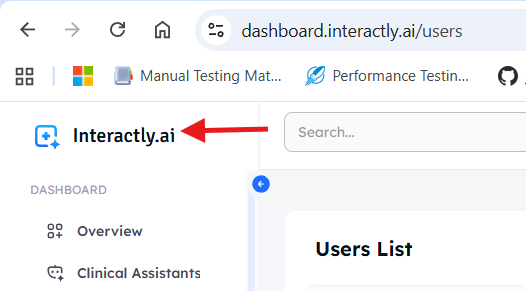
From the logo — Click the Interactly.ai logo at the top-left corner.
-
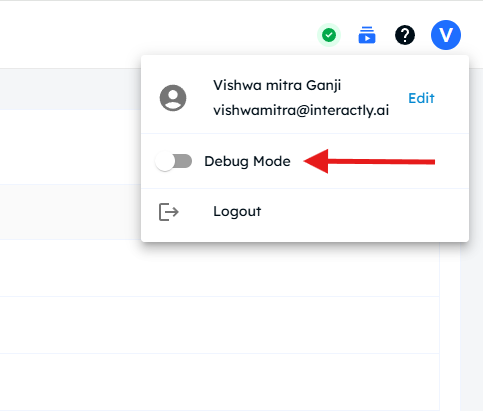
From your profile — Click the Profile icon at the top-right and toggle Debug mode ON.
Debug info in Call Logs
Open any conversation from Call Logs after enabling Debug mode. You’ll notice new metrics displayed at each Assistant and User utterance.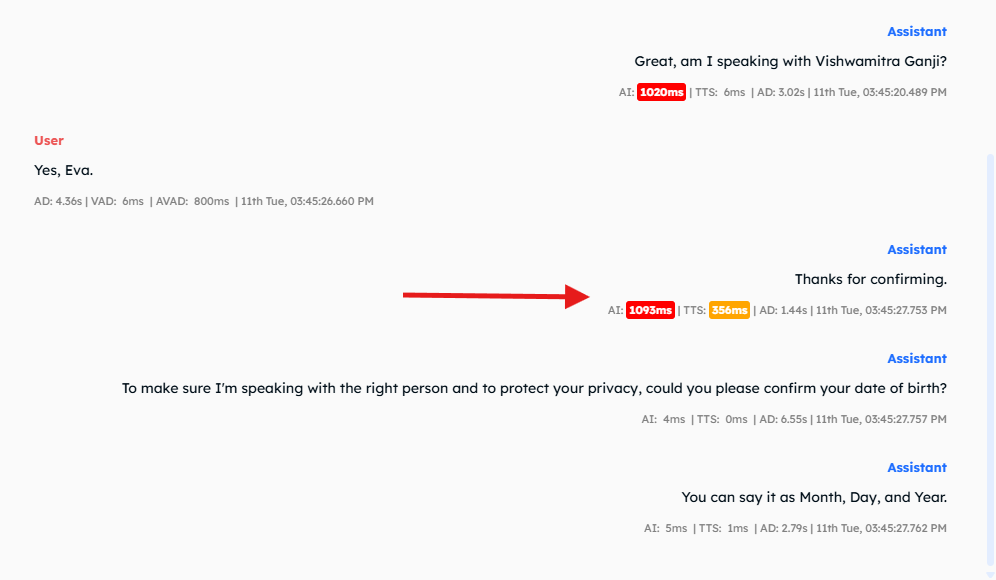
Assistant utterance metrics
- AI: 1093 ms — Time taken by the LLM to generate the response.
- TTS: 356 ms — Time taken by the TTS engine to generate the audio clip.
- AD — Audio Duration of that particular clip.
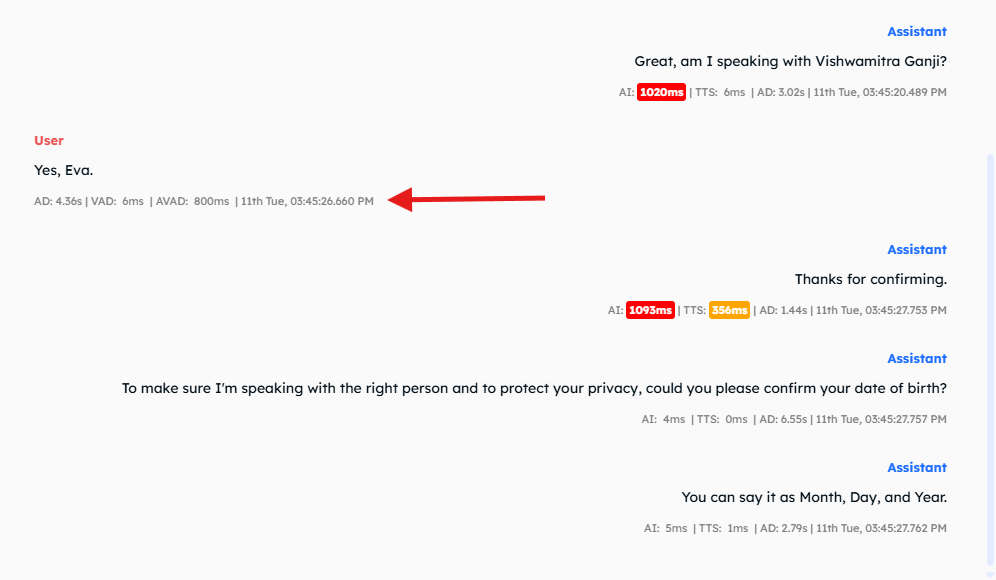
User utterance metrics
- AD — Audio Duration of the user’s spoken input.
- VAD: 6 ms (Voice Activity Detection) — Time the STT vendor waited after receiving the final word.
-
AVAD: 800 ms (Additional Voice Activity Detection) — Extra waiting time configured at the Assistant level under
Advanced → Start Speaking Plan → Smart Endpointing OFF.
Accessing Meta Info — Assistant utterances
To view detailed metadata, click on the Assistant key in the utterance view.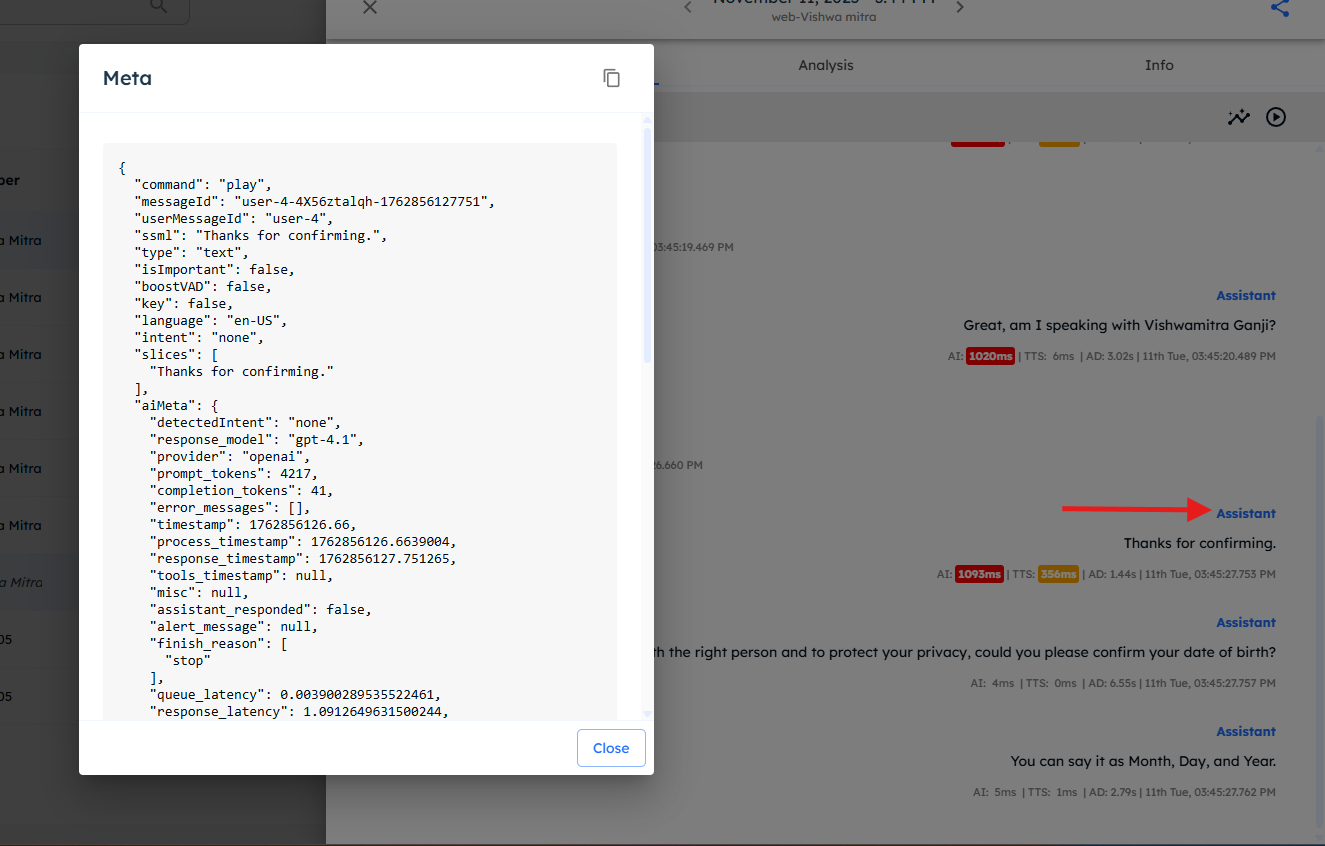
Key fields in meta info
-
command — Indicates whether the action is
PlayorEnd.Endsignals the call termination.
- messageId — Unique ID for the Assistant’s utterance.
- userMessageId — The ID of the corresponding user message that triggered this response.
AI Meta fields
-
finish_reason — Can be
stop,tool_calls, orlength.stop: Response finished naturally.length: Token limit reached.tool_calls: Model triggered a tool/function.
- queue_latency — Time the request waited before model processing started.
- response_latency — Time the model took to generate the response.
- trailing_messages — Last 6 utterances passed to the LLM for context.
Other useful fields
- audioDuration — Duration of the generated audio clip.
- isBargein — Whether the utterance was interrupted.
- isCachePlaying —
true/false; indicates if the clip was played from cache or generated fresh. - model / vendor — The TTS model and vendor used.
Accessing Meta Info — User utterances
Click on the User key in the utterance to view metadata for the user’s input.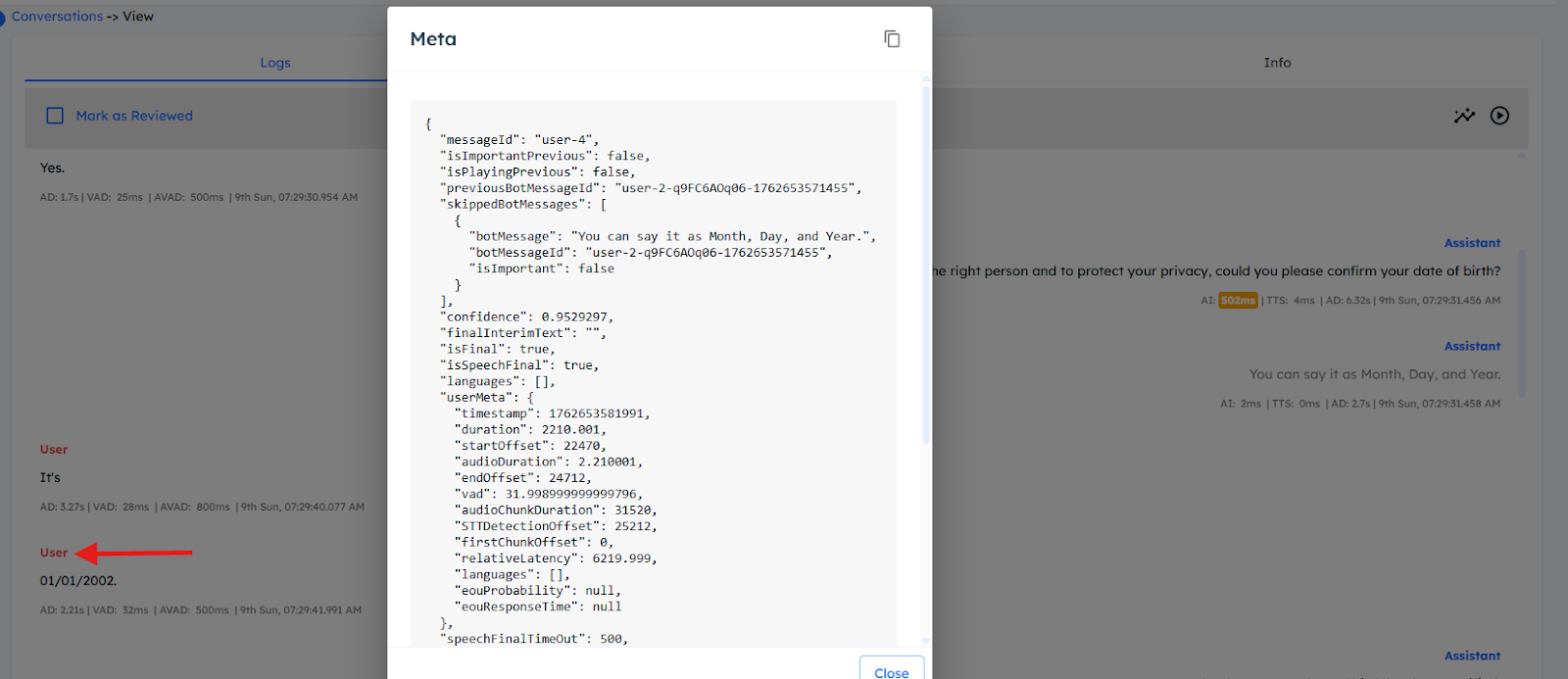
Important fields
- messageId — ID of the user message.
- previousBotMessageId — ID of the last Assistant response before this message.
- skippedBotMessages — List of interrupted Assistant messages skipped due to this utterance.
- confidence — Confidence score returned by the STT engine for this transcript.