

ngrok creates a secure tunnel to your local development server, making it accessible from the internet so Interactly can send webhook events to your local machine.
Prerequisites
Before getting started, make sure you have:- Python 3.7+ installed
- ngrok account and installation (Download ngrok)
- An Interactly assistant configured for testing
Setup Overview
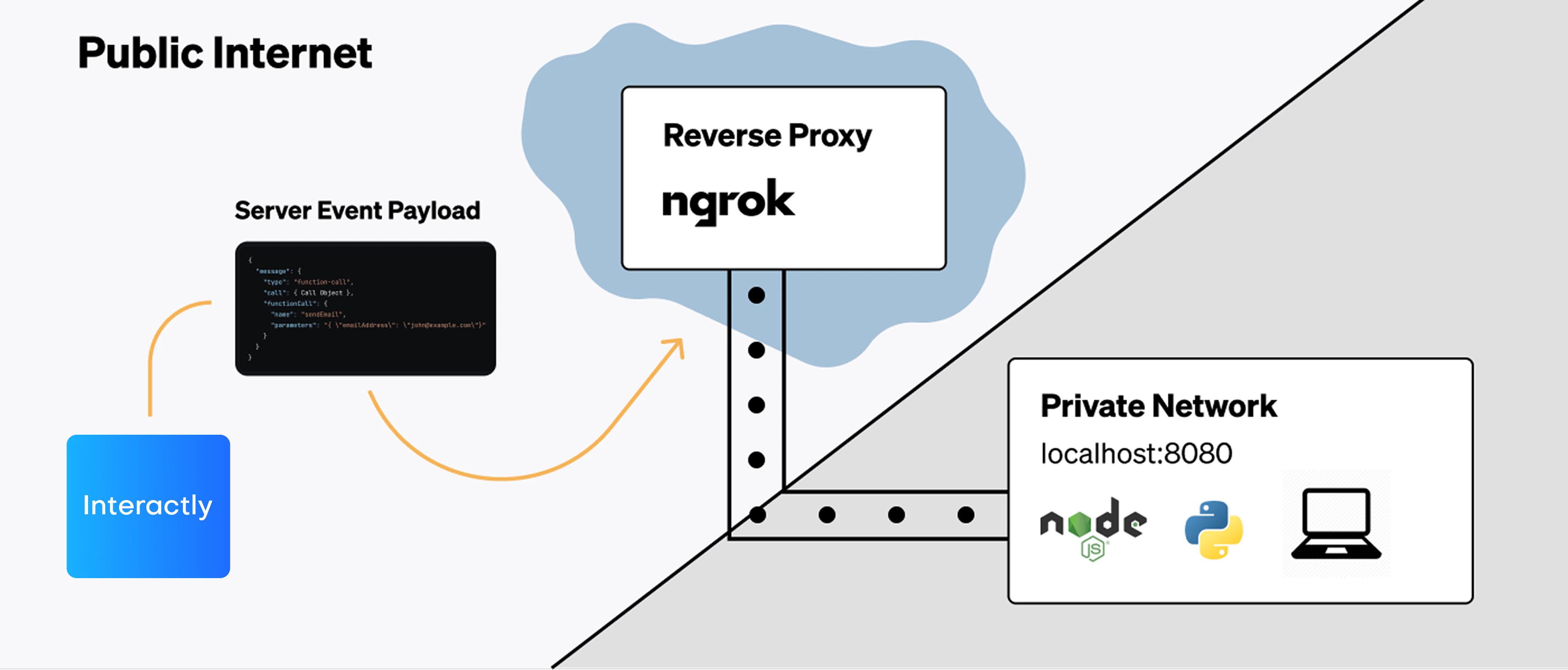
Overview of the local testing setup with ngrok and a Python webhook server.
Step 1: Install Dependencies
Create a new directory for your webhook testing server:Step 2: Create the Webhook Server
Create a file namedwebhook_server.py with the following code:
Step 3: Configure Environment (Optional)
Create a.env file for configuration:
.env
Step 4: Start ngrok Tunnel
Open a new terminal and start ngrok: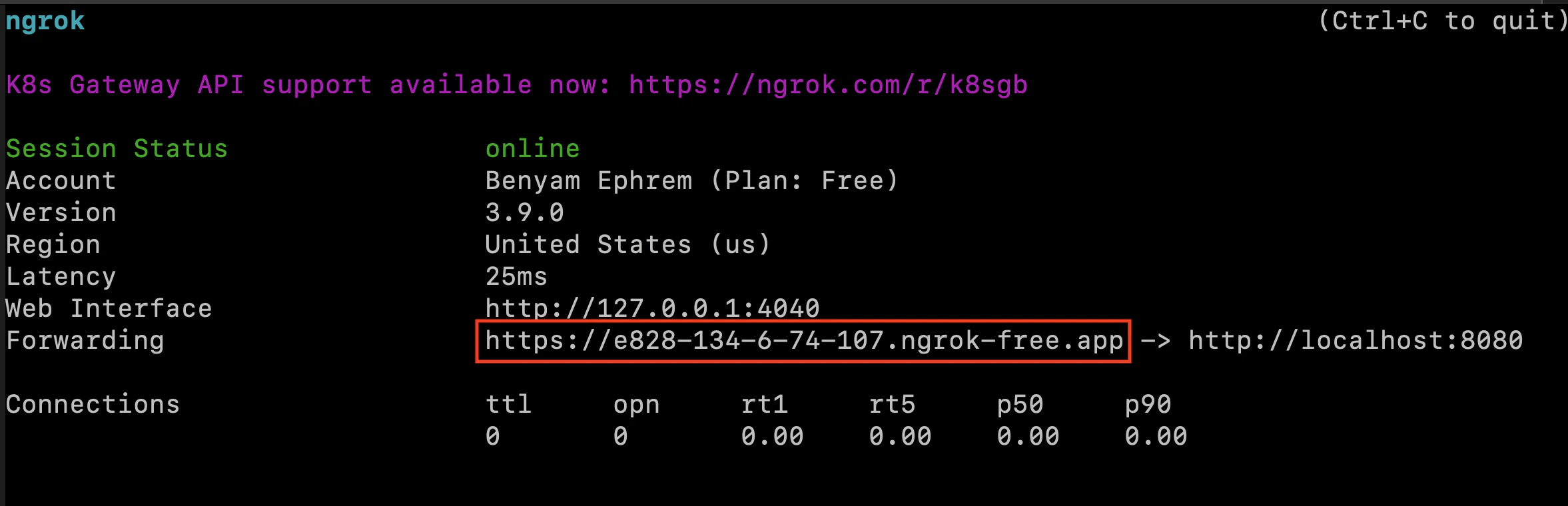
Terminal after running the 'ngrok' command forwarding to localhost:8080 — the 'Forwarding' URL is what we want.
Copy the ngrok URL: You’ll need the
https://abc123.ngrok.io URL for the next step. This URL changes each time you restart ngrok (unless you have a paid plan with reserved domains).Step 5: Start Your Webhook Server
In your first terminal, start the Python webhook server:Step 6: Configure Interactly Assistant
Now configure your Interactly assistant to use your ngrok webhook URL:Via Dashboard UI
- Go to your Interactly dashboard
- Select your test assistant
- Navigate to Advanced Tab
- Scroll to Server Configuration
- Fill in the webhook settings:
Via API
Step 7: Test Your Setup
Test the Webhook Endpoint
First, verify your webhook endpoint is accessible:Start a Test Call
- Go to your Interactly dashboard
- Start a test call with your configured assistant
- Speak a few messages
- End the call
Monitor the Logs
Watch your webhook server terminal for incoming events:Advanced Testing Features
Event Filtering and Analysis
Add custom filtering to focus on specific events:Save Events to File
Store webhook events for later analysis:Metrics Collection
Track webhook statistics:Troubleshooting
Common Issues
Debug Mode
Add debug logging to your webhook server:ngrok Web Interface
Visithttp://localhost:4040 to see:
- Request/response logs
- Traffic inspection
- Tunnel status
- Error diagnostics
Production Considerations
When moving from testing to production:- Use HTTPS: Always use HTTPS endpoints in production
- Implement Authentication: Use webhook secrets and additional security
- Add Rate Limiting: Protect against excessive webhook calls
- Error Handling: Implement robust error handling and recovery
- Monitoring: Add proper logging and alerting
- Idempotency: Handle duplicate events gracefully
Next Steps
Once your local testing is working, deploy your webhook server to a production environment and update your assistant configuration with the production URL.