

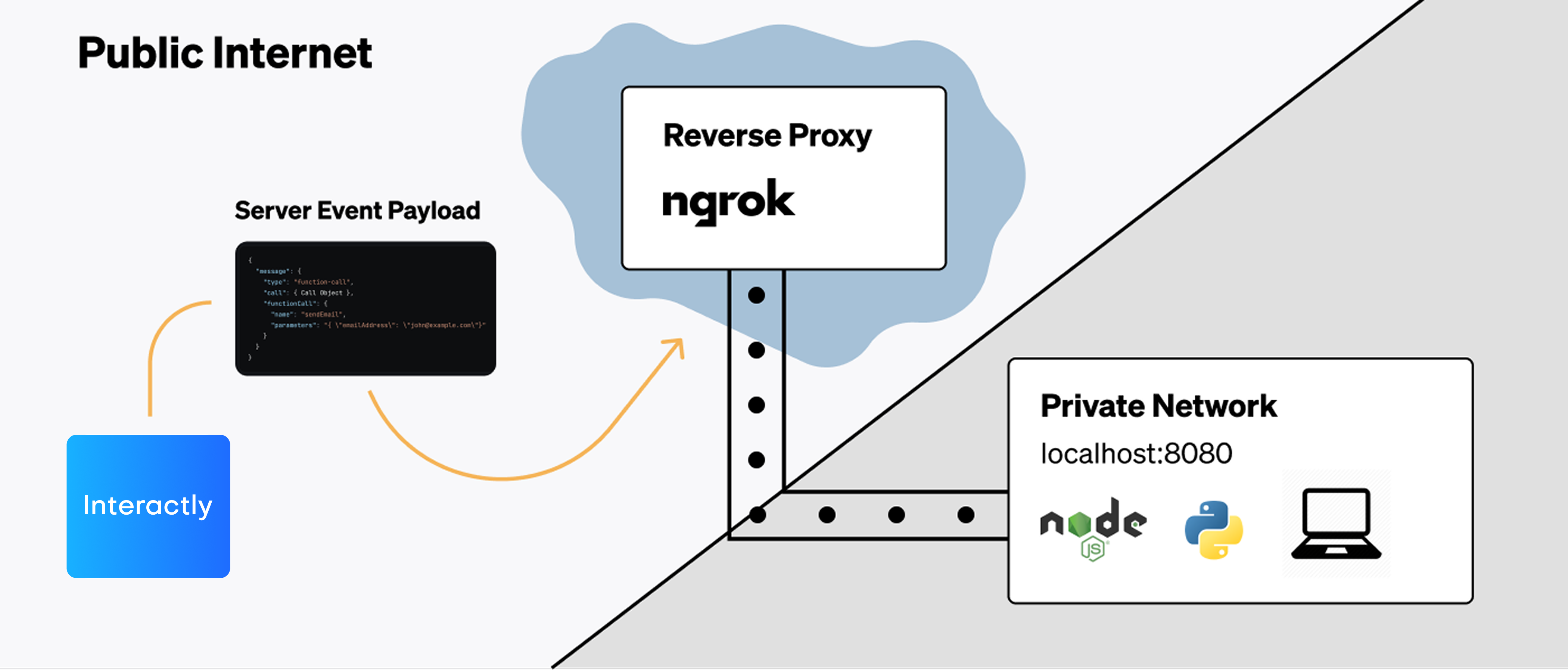
Routing server URL payloads to a public reverse proxy, which tunnels to our local development server.
The Problem
When Interactly dispatches events to a server, it must be able to reach the server via the open Internet. If your API is already live in production, it will be accessible via a publicly known URL. But, during development, your server will often be running locally on your machine.localhost is an alias for the IP address 127.0.0.1. This address is called the “loopback”
address and forwards the network request within the machine itself.Tunneling Traffic
We will be using a service called ngrok to create a secure tunnel to our local machine. The flow will look like the following:1
Start Our API Locally
We will start our server locally so it is listening for http traffic. We will take note of the port our server is running on.
2
Start Ngrok Agent
We will use the
ngrok command to start the ngrok agent on our
machine. This will establish a connection from your local machine to ngrok’s servers.3
Copy Ngrok Forwarding URL
Ngrok will give us a public forwarding URL that can receive traffic. We will use this as a server URL
during development.
4
Trigger Call Events
We will conduct normal calls on Interactly to trigger events. These events will go to the Ngrok URL & get tunnelled to our local machine.We will see the event payloads come through locally & log them in our terminal.
Starting Our API Locally
First, ensure that your API is running locally. This could be a Node.js server, a Python server, or any other server that can receive HTTP requests. Take note of the port that your server is running on. For example, if your server is running on port8080, you should be able to access it at http://localhost:8080 in your browser.
Starting Ngrok Agent
Next we will install & run Ngrok agent to establish the forwarding pathway for Internet traffic:1
Install Ngrok Agent CLI
Install the Ngrok agent by following Ngrok’s quickstart
guide. Once complete, we will have the
ngrok command
available in our terminal.2
Start Ngrok Agent
Run the command
ngrok http 8080, this will create the tunnel with Ngrok’s servers.
Replace
8080 with the port your server is running on.Copy Ngrok Forwarding URL
You will see an output from the Ngrok Agent CLI that looks like the following: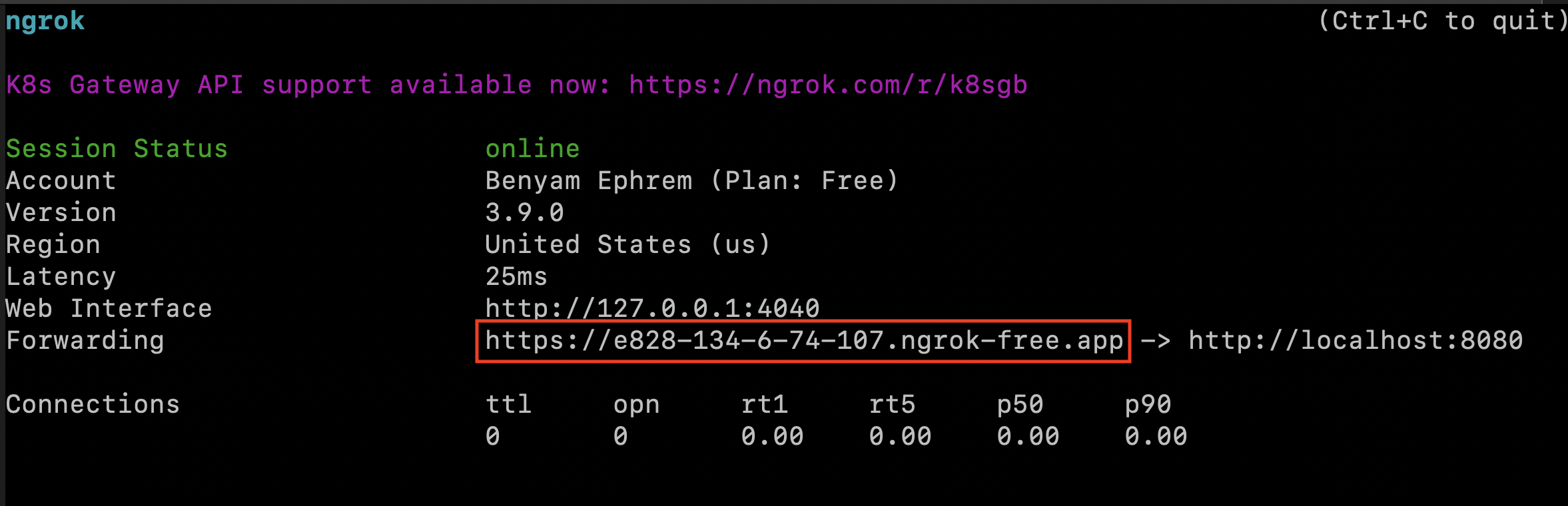
Terminal after running the 'ngrok' command forwarding to localhost:8080 — the 'Forwarding' URL is what we want.
This URL will change every time that you run the
ngrok command. If you’d like this URL to be the
same every Ngrok session, look into static domains on
Ngrok.Trigger Call Events
We will now be able to see call events come through asPOST requests, & can log payloads to our terminal.
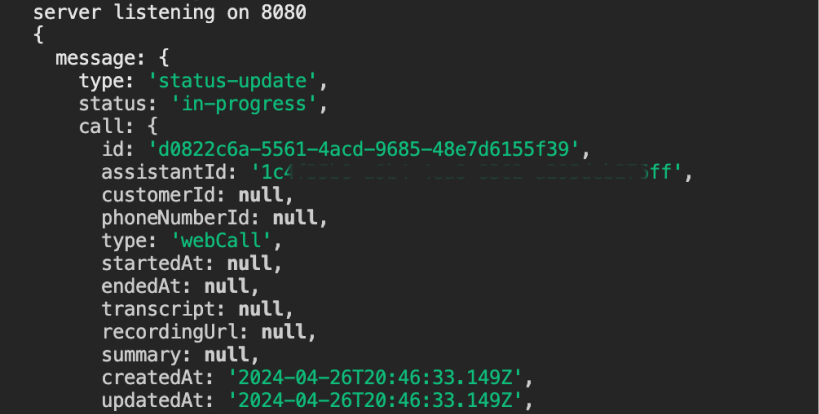
Logging call events routed to our local environment.
Troubleshooting
Here’s a list of a few things to recheck if you face issues seeing payloads:- Ensure that your local server is running on the port you expect
- Ensure that you input the correct port to the
ngrok http {your_port}command - Ensure your route handling server URL events is a
POSTendpoint - Ensure your path on top of the base forwarding url is set correctly (ex:
/callbacks/Interactly)