> ## Documentation Index
> Fetch the complete documentation index at: https://docs.interactly.ai/llms.txt
> Use this file to discover all available pages before exploring further.
# Webhook Events Overview
> Complete guide to Interactly webhook events at the assistant level
Webhooks allow you to receive real-time notifications about events happening during calls with your assistants. Instead of constantly polling our API for updates, you can configure webhook endpoints to automatically receive event data as it occurs.
Webhook configurations are set at the **assistant level**, meaning each assistant can have its own webhook server configuration that will be applied to all calls made using that assistant.
## How Webhooks Work
When you enable webhooks for an assistant, Interactly will make HTTP POST requests to your specified webhook URL whenever subscribed events occur during calls. This enables you to:
* Track call status changes in real-time
* Receive conversation transcripts as they happen
* Get notified when calls end
* Handle errors and hang-up scenarios
* Process end-of-call reports with analytics
## Supported Events
Interactly provides **5 comprehensive webhook events** to keep you informed about every aspect of your voice calls:
Real-time notifications when call status transitions between queued, ongoing, finished, or forwarded states.
**Triggers:** Per status change
Live feed of every message exchanged between users and assistants during active calls.
**Triggers:** Per message
Comprehensive analytics package including call summaries, recordings, and performance metrics.
**Triggers:** Once per call
Immediate alerts when your assistant fails to respond within the 5-second timeout window.
**Triggers:** When timeout occurs
Instant notifications for LLM processing errors and speech-to-text failures.
**Triggers:** Per error occurrence
Each event type provides detailed payload data to help you build robust integrations and monitoring systems.
## Webhook Configuration
You can configure webhooks in two ways:
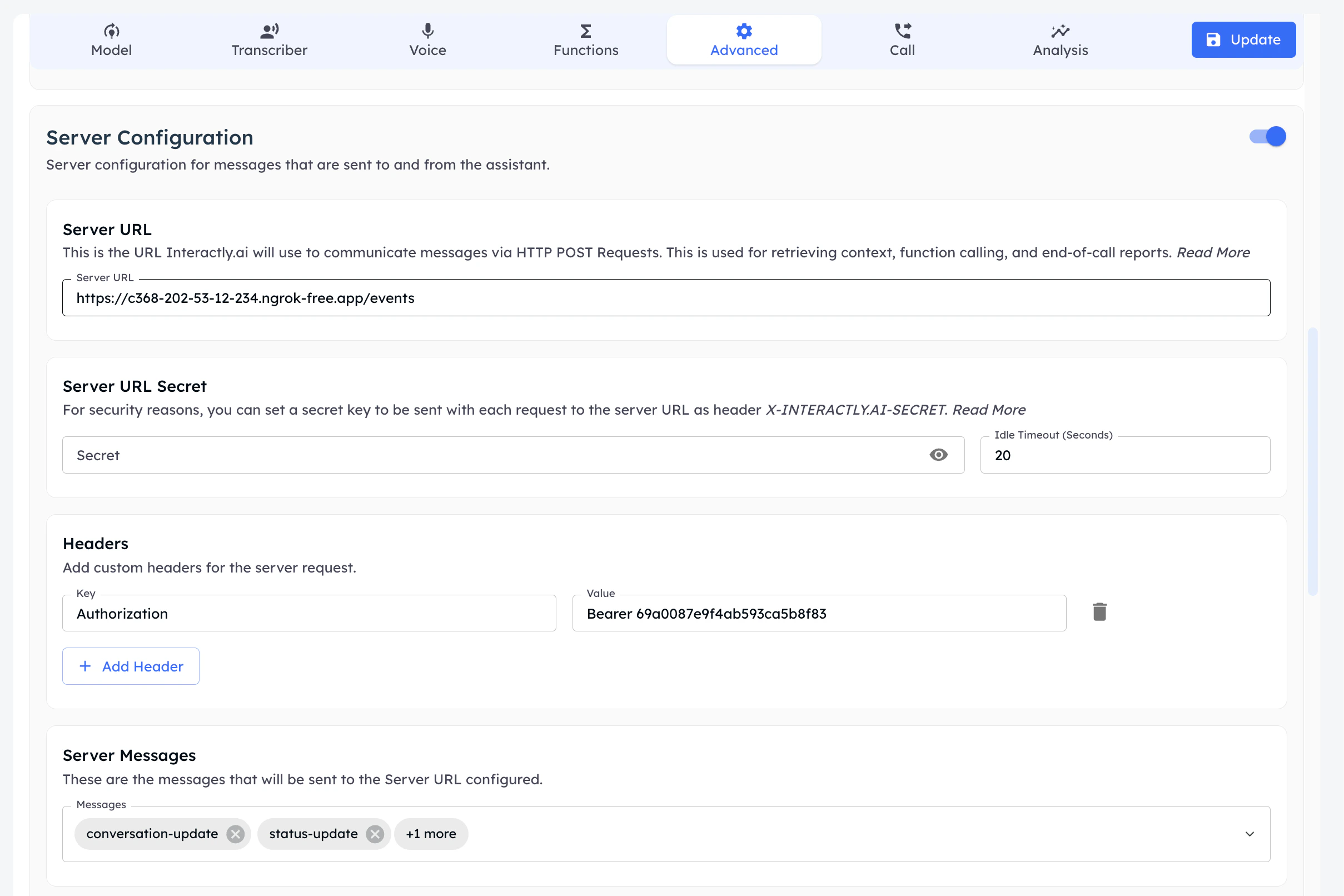
### Via Dashboard UI
1. Go to your Interactly dashboard
2. Select "Clinical Assistants"
3. Create new assistant or select an existing one
4. Navigate to "Advanced Tab"
5. Scroll to "**Server Configuration**" and enable webhooks
6. Configure your webhook URL, headers, and event subscriptions
7. In "**Server Messages**" section, select the events you want to receive
8. Click "Update Assistant"
 ### Via API
Configure webhook settings when creating or updating assistants using the `assistantServer` field:
Refer: [assistant creation](/api-reference/assistants/create-assistant) (or via an [update](/api-reference/assistants/update-assistant)) you can set the assistant's server URL.
```json Create Assistant theme={null}
{
"assistantServer": {
"enabled": true,
"url": "https://api.example.com/v1/webhook-events",
"timeoutSeconds": 20,
"secret": "my-webhook-secret",
"headers": {
"Authorization": "Bearer your-api-key",
"X-Custom-Header": "value"
},
"messages": [
"status-update",
"conversation-update",
"end-of-call-report",
"hang",
"error"
]
}
}
```
```json Update Assistant theme={null}
{
"assistantServer": {
"enabled": true,
"url": "https://api.example.com/v1/webhook-events",
"timeoutSeconds": 30,
"messages": ["conversation-update", "end-of-call-report"]
}
}
```
## Configuration Fields
| Field | Type | Required | Description |
| ---------------- | ------- | -------- | ---------------------------------------------- |
| `enabled` | boolean | ✅ | Enable/disable webhook configuration |
| `url` | string | ✅ | Your webhook endpoint URL (when enabled) |
| `timeoutSeconds` | number | ❌ | Request timeout (default: 20 seconds) |
| `secret` | string | ❌ | Adds `x-interactly-secret` header for security |
| `headers` | object | ❌ | Custom headers (e.g., authentication) |
| `messages` | array | ✅ | List of events to subscribe to |
When `enabled` is `true`, both `url` and `messages` become required fields.
## Security Considerations
### Authentication Headers
Use the `headers` field to add authentication tokens:
```json theme={null}
{
"headers": {
"Authorization": "Bearer your-secret-token",
"X-API-Key": "your-api-key"
}
}
```
### Secret Verification
When you provide a `secret` value, we'll include an `x-interactly-secret` header in all webhook requests:
```json theme={null}
{
"secret": "your-webhook-secret"
}
```
This allows you to verify that webhook requests are genuinely from Interactly.
## Delivery Guarantees
**Single Delivery Attempt**: We make only **one delivery attempt** per event. If your webhook endpoint is unreachable or returns an error, the event will not be retried.
Ensure your webhook endpoint:
* Returns HTTP 200-299 status codes for successful processing
* Responds within the configured timeout period
* Handles requests idempotently
* Has proper error handling and logging
## Common Webhook Patterns
### Event Processing
```python theme={null}
def process_webhook(event_data):
event_type = event_data["message"]["type"]
if event_type == "status-update":
handle_status_change(event_data)
elif event_type == "conversation-update":
store_conversation(event_data)
elif event_type == "end-of-call-report":
process_call_analytics(event_data)
```
### Error Handling
```python theme={null}
def webhook_endpoint():
try:
# Verify secret if configured
if not verify_webhook_secret(request.headers):
return {"error": "Unauthorized"}, 401
# Process event
result = process_webhook(request.json)
return {"status": "processed"}, 200
except Exception as e:
logger.error(f"Webhook processing failed: {e}")
return {"error": "Processing failed"}, 500
```
## Next Steps
Explore detailed documentation for each webhook event type
Set up a local webhook server for testing with ngrok
## Getting Help
If you need assistance with webhook configuration:
* Check our [testing guide](/webhooks/events/testing/ngrok-setup) for local development setup
* Review the [event reference](/webhooks/events/status-update) for detailed payload specifications
* Contact support for configuration assistance
### Via API
Configure webhook settings when creating or updating assistants using the `assistantServer` field:
Refer: [assistant creation](/api-reference/assistants/create-assistant) (or via an [update](/api-reference/assistants/update-assistant)) you can set the assistant's server URL.
```json Create Assistant theme={null}
{
"assistantServer": {
"enabled": true,
"url": "https://api.example.com/v1/webhook-events",
"timeoutSeconds": 20,
"secret": "my-webhook-secret",
"headers": {
"Authorization": "Bearer your-api-key",
"X-Custom-Header": "value"
},
"messages": [
"status-update",
"conversation-update",
"end-of-call-report",
"hang",
"error"
]
}
}
```
```json Update Assistant theme={null}
{
"assistantServer": {
"enabled": true,
"url": "https://api.example.com/v1/webhook-events",
"timeoutSeconds": 30,
"messages": ["conversation-update", "end-of-call-report"]
}
}
```
## Configuration Fields
| Field | Type | Required | Description |
| ---------------- | ------- | -------- | ---------------------------------------------- |
| `enabled` | boolean | ✅ | Enable/disable webhook configuration |
| `url` | string | ✅ | Your webhook endpoint URL (when enabled) |
| `timeoutSeconds` | number | ❌ | Request timeout (default: 20 seconds) |
| `secret` | string | ❌ | Adds `x-interactly-secret` header for security |
| `headers` | object | ❌ | Custom headers (e.g., authentication) |
| `messages` | array | ✅ | List of events to subscribe to |
When `enabled` is `true`, both `url` and `messages` become required fields.
## Security Considerations
### Authentication Headers
Use the `headers` field to add authentication tokens:
```json theme={null}
{
"headers": {
"Authorization": "Bearer your-secret-token",
"X-API-Key": "your-api-key"
}
}
```
### Secret Verification
When you provide a `secret` value, we'll include an `x-interactly-secret` header in all webhook requests:
```json theme={null}
{
"secret": "your-webhook-secret"
}
```
This allows you to verify that webhook requests are genuinely from Interactly.
## Delivery Guarantees
**Single Delivery Attempt**: We make only **one delivery attempt** per event. If your webhook endpoint is unreachable or returns an error, the event will not be retried.
Ensure your webhook endpoint:
* Returns HTTP 200-299 status codes for successful processing
* Responds within the configured timeout period
* Handles requests idempotently
* Has proper error handling and logging
## Common Webhook Patterns
### Event Processing
```python theme={null}
def process_webhook(event_data):
event_type = event_data["message"]["type"]
if event_type == "status-update":
handle_status_change(event_data)
elif event_type == "conversation-update":
store_conversation(event_data)
elif event_type == "end-of-call-report":
process_call_analytics(event_data)
```
### Error Handling
```python theme={null}
def webhook_endpoint():
try:
# Verify secret if configured
if not verify_webhook_secret(request.headers):
return {"error": "Unauthorized"}, 401
# Process event
result = process_webhook(request.json)
return {"status": "processed"}, 200
except Exception as e:
logger.error(f"Webhook processing failed: {e}")
return {"error": "Processing failed"}, 500
```
## Next Steps
Explore detailed documentation for each webhook event type
Set up a local webhook server for testing with ngrok
## Getting Help
If you need assistance with webhook configuration:
* Check our [testing guide](/webhooks/events/testing/ngrok-setup) for local development setup
* Review the [event reference](/webhooks/events/status-update) for detailed payload specifications
* Contact support for configuration assistance