> ## Documentation Index
> Fetch the complete documentation index at: https://docs.interactly.ai/llms.txt
> Use this file to discover all available pages before exploring further.
# Multi-Modal Campaign
> Learn how to set up multi-modal campaigns that combine AI voice calls with pre-call and post-call SMS messaging for enhanced engagement
# About
Multi-modal campaigns provide a comprehensive communication approach by combining voice calls with SMS messaging capabilities. These campaigns enable you to send pre-call notifications, conduct AI-powered phone conversations, and follow up with targeted post-call messages based on call outcomes.
Multi-modal campaigns include **all single-modal campaign features** plus advanced messaging capabilities. For voice-only campaigns, consider [Single-Modal Campaigns](/campaigns/single-modal-campaign).
## What Makes It Multi-Modal?
Multi-modal campaigns extend voice interactions with messaging at multiple touchpoints:
* 🔔 **Pre-call SMS notifications**
* 📞 **AI-powered voice calls**
* 📨 **Outcome-based follow-up messages**
* 📊 **Enhanced tracking and analytics**
## Key Advantages
* **Higher connection rates**: Pre-call SMS increases answer rates
* **Better preparation**: Recipients expect and prepare for calls
* **Continued engagement**: Post-call messages maintain connection
* **Flexible communication**: Accommodates different preferences
* **Call answered**: Confirmation and next steps
* **Missed calls**: Reschedule options and information
* **Declined calls**: Alternative contact methods
* **Technical issues**: Support and retry information
* **Conditional messaging**: Different messages for different outcomes
* **Dynamic variables**: Personalized content throughout journey
* **Timing control**: Precise scheduling for optimal engagement
* **Multi-channel tracking**: Complete customer journey visibility
## When to Use Multi-Modal Campaigns
### Perfect Use Cases
* Medical appointment reminders with confirmation
* Service appointments with preparation instructions
* Meeting scheduling with agenda sharing
* Customer surveys with follow-up resources
* Sales outreach with information sharing
* Support follow-up with documentation
* Multi-step customer journeys
* Conditional communication paths
* Document or link sharing requirements
* Regulated industries requiring documentation
* Confirmation requirements
* Audit trail maintenance
## Creating Your Multi-Modal Campaign
1. Navigate to your Interactly dashboard
2. Click the **Campaigns** tab
3. Select **New Campaign** to begin
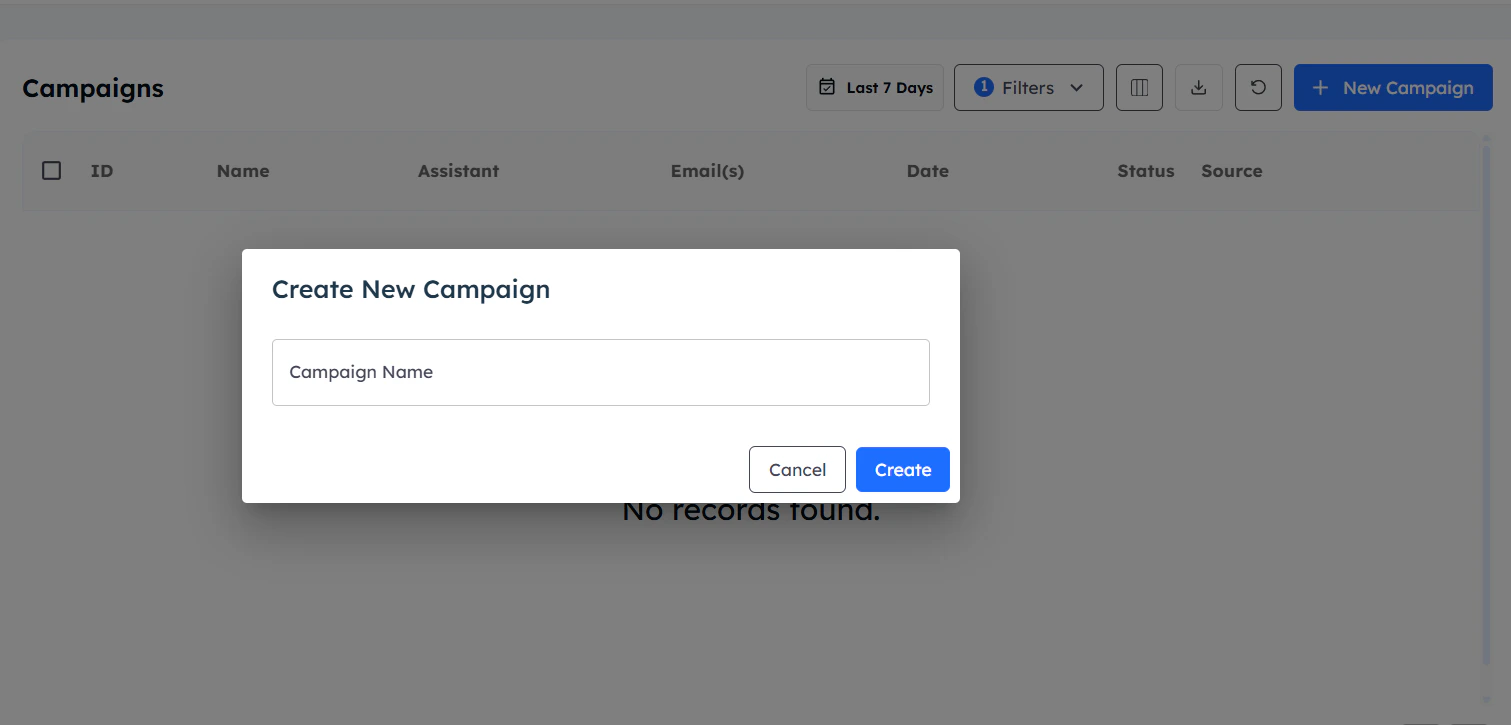 1. Provide a descriptive campaign name
2. Click **Create** to proceed
3. You'll be redirected to the configuration page
1. Provide a descriptive campaign name
2. Click **Create** to proceed
3. You'll be redirected to the configuration page
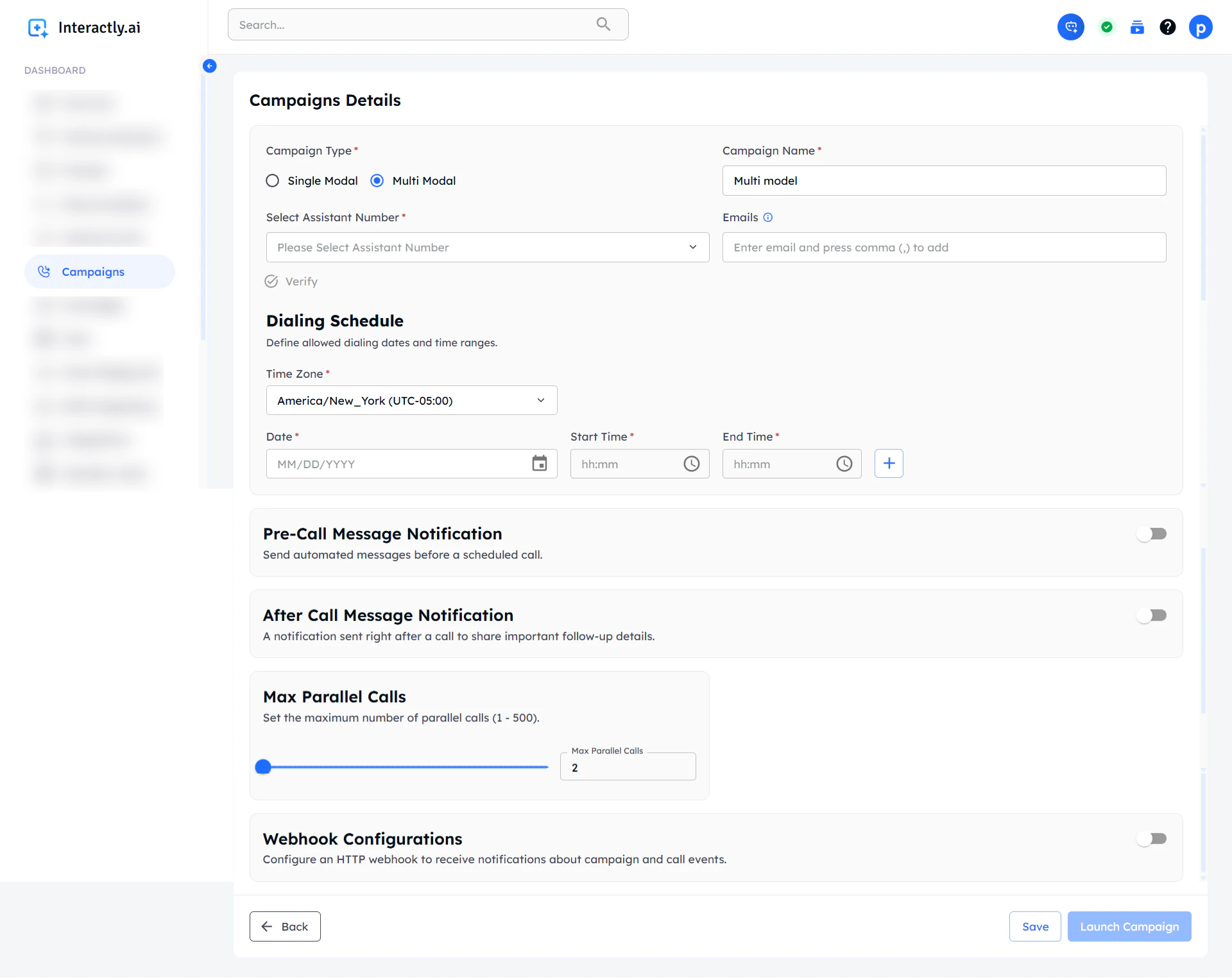 Choose **Multi-Modal** as your campaign type to unlock messaging features.
Multi-modal campaigns include all single-modal features plus pre-call and post-call messaging capabilities.
## Pre-Call Message Configuration
Pre-call messages notify recipients about upcoming calls, improving answer rates and call preparation.
**Before Call Settings:**
* **Default**: 10 minutes before call
* **Custom timing**: Set any duration (minimum 10 minutes)
* **Flexible scheduling**: Align with your workflow needs
**Message Configuration:**
**SMS (Default)**
* Currently supported message type
* Direct delivery to mobile phones
* High open and read rates
**Personalization**
* Use campaign assistant variables
* Click variables to copy them
* Personalize each message
Choose **Multi-Modal** as your campaign type to unlock messaging features.
Multi-modal campaigns include all single-modal features plus pre-call and post-call messaging capabilities.
## Pre-Call Message Configuration
Pre-call messages notify recipients about upcoming calls, improving answer rates and call preparation.
**Before Call Settings:**
* **Default**: 10 minutes before call
* **Custom timing**: Set any duration (minimum 10 minutes)
* **Flexible scheduling**: Align with your workflow needs
**Message Configuration:**
**SMS (Default)**
* Currently supported message type
* Direct delivery to mobile phones
* High open and read rates
**Personalization**
* Use campaign assistant variables
* Click variables to copy them
* Personalize each message
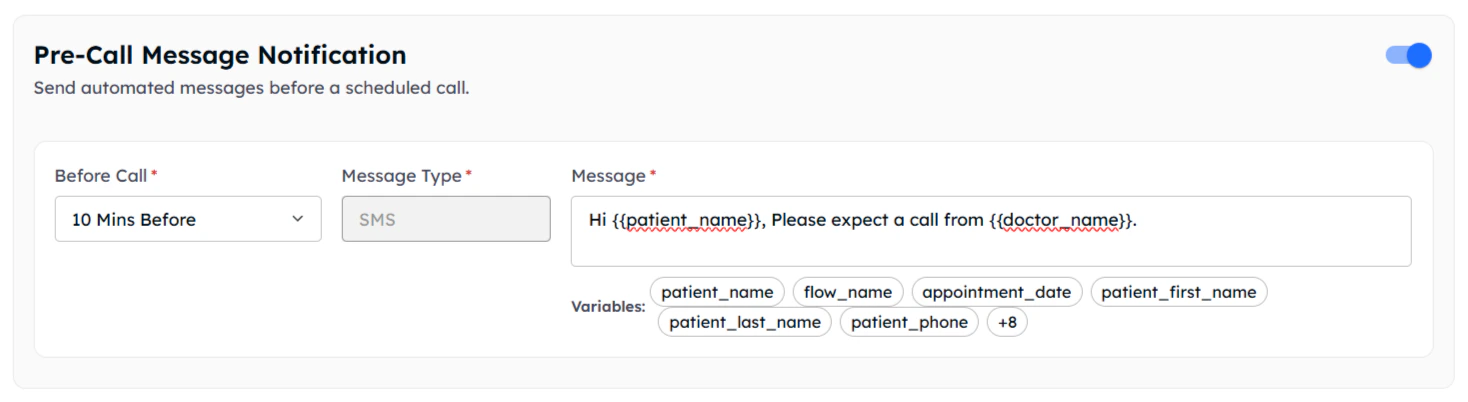 **Example Pre-Call Message:**
```
Hi {{name}}, this is a reminder that we'll be calling you at {{phone}} in 10 minutes regarding your {{appointment_type}}. Please answer when {{company_name}} calls. Thank you!
```
## Post-Call Message Configuration
Post-call messages provide targeted follow-up based on specific call outcomes, ensuring continued engagement regardless of call results.
Configure different messages for each possible call outcome to maintain engagement and provide appropriate next steps.
### Call Outcome Messaging
**When the recipient successfully answers the call:**
Toggle on **"Call Answered"** to activate this messaging
Create a follow-up message that reinforces the conversation:
* Confirm discussed information
* Provide next steps or resources
* Include contact information for follow-up
* Use dynamic variables for personalization
**Example Pre-Call Message:**
```
Hi {{name}}, this is a reminder that we'll be calling you at {{phone}} in 10 minutes regarding your {{appointment_type}}. Please answer when {{company_name}} calls. Thank you!
```
## Post-Call Message Configuration
Post-call messages provide targeted follow-up based on specific call outcomes, ensuring continued engagement regardless of call results.
Configure different messages for each possible call outcome to maintain engagement and provide appropriate next steps.
### Call Outcome Messaging
**When the recipient successfully answers the call:**
Toggle on **"Call Answered"** to activate this messaging
Create a follow-up message that reinforces the conversation:
* Confirm discussed information
* Provide next steps or resources
* Include contact information for follow-up
* Use dynamic variables for personalization
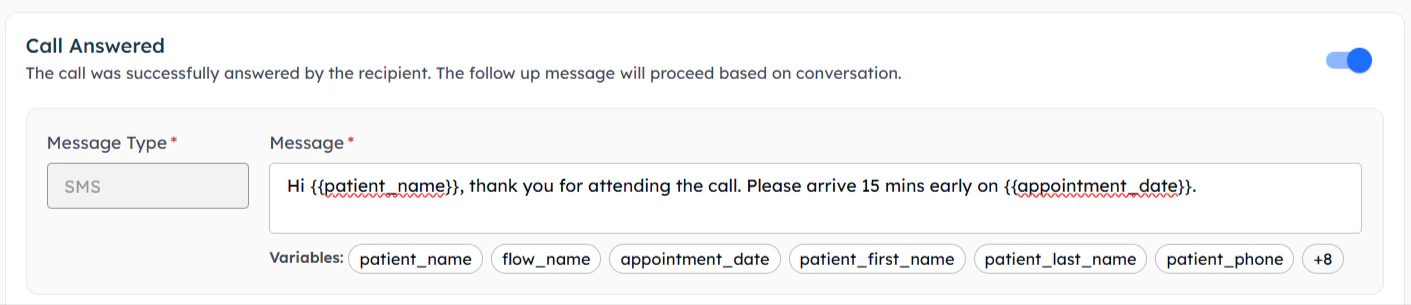 **Example Message:**
```
Hi {{name}}, thank you for speaking with us about {{topic}}. As discussed, your next appointment is {{next_appointment_date}}. If you have questions, call {{support_number}}.
```
**When the call goes unanswered:**
* Inform about the missed call
* Provide callback information
* Offer alternative contact methods
* Include important information they missed
**Example Message:**
```
Hi {{name}}, thank you for speaking with us about {{topic}}. As discussed, your next appointment is {{next_appointment_date}}. If you have questions, call {{support_number}}.
```
**When the call goes unanswered:**
* Inform about the missed call
* Provide callback information
* Offer alternative contact methods
* Include important information they missed
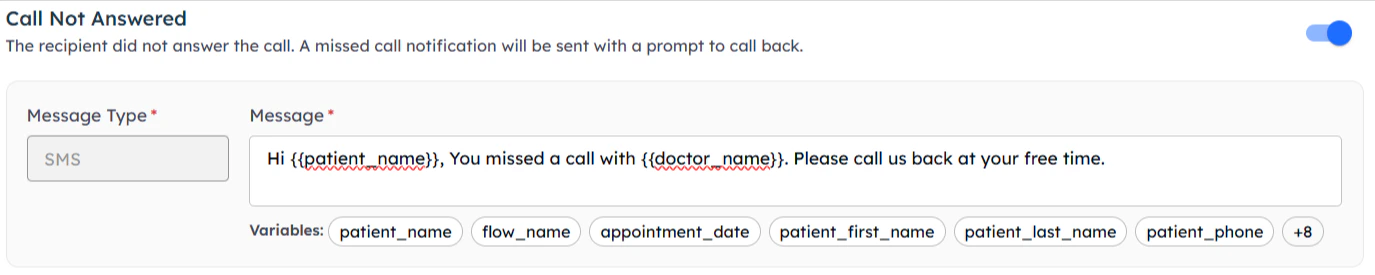 **Example Message:**
```
Hi {{name}}, we tried calling you at {{time}} regarding {{purpose}}. Please call us back at {{callback_number}} or reply CALLBACK for us to try again.
```
**When the call is declined or recipient is busy:**
* Acknowledge their unavailability
* Offer rescheduling options
* Provide alternative contact methods
* Maintain professional tone
**Example Message:**
```
Hi {{name}}, we tried calling you at {{time}} regarding {{purpose}}. Please call us back at {{callback_number}} or reply CALLBACK for us to try again.
```
**When the call is declined or recipient is busy:**
* Acknowledge their unavailability
* Offer rescheduling options
* Provide alternative contact methods
* Maintain professional tone
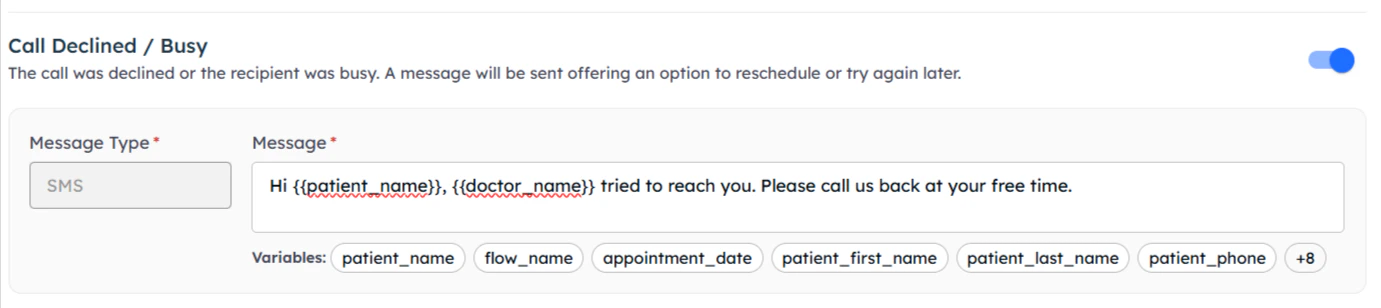 **Example Message:**
```
Hi {{name}}, we understand you were busy when we called. Please reply with a good time to call back, or contact us at {{contact_number}} at your convenience.
```
### Additional Call Outcomes
**When a voicemail is left for the recipient:**
Set up voicemail detection in your AI assistant:
1. Go to your campaign's AI assistant settings
2. Open the **"Analysis"** tab
3. Configure **"Outcome Type"** and **"Outcome Field"**
Messages are sent automatically when voicemail is detected:
* Uses the message from your outcome field configuration
* Informs recipient about the voicemail
* Provides callback information
**Example Message:**
```
Hi {{name}}, we understand you were busy when we called. Please reply with a good time to call back, or contact us at {{contact_number}} at your convenience.
```
### Additional Call Outcomes
**When a voicemail is left for the recipient:**
Set up voicemail detection in your AI assistant:
1. Go to your campaign's AI assistant settings
2. Open the **"Analysis"** tab
3. Configure **"Outcome Type"** and **"Outcome Field"**
Messages are sent automatically when voicemail is detected:
* Uses the message from your outcome field configuration
* Informs recipient about the voicemail
* Provides callback information
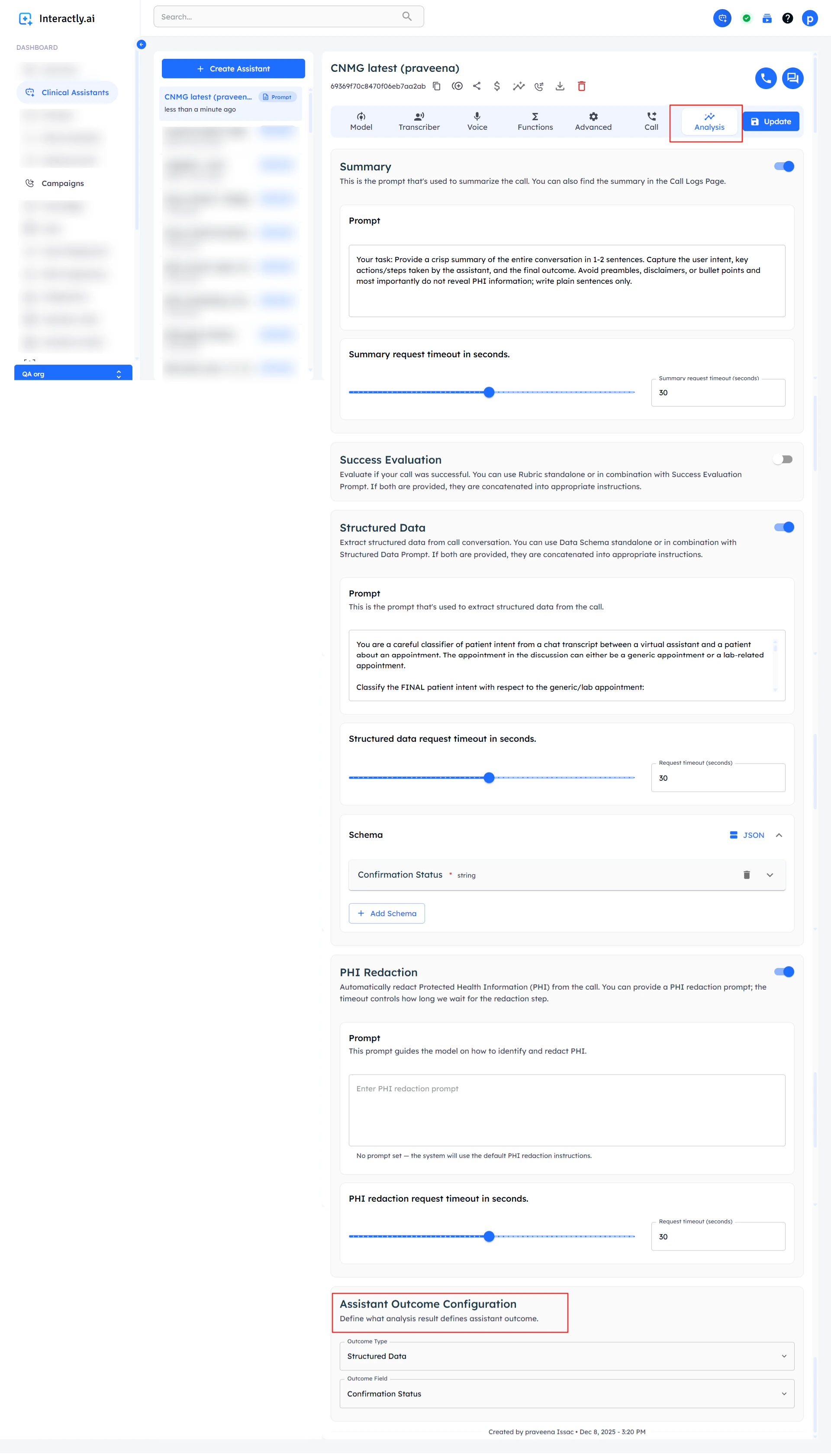 Ensure your AI assistant is properly configured for voicemail detection to enable automatic voicemail notifications.
**When technical issues interrupt the call:**
* Acknowledge the technical problem
* Apologize for the inconvenience
* Provide alternative contact methods
* Offer to retry the call
Ensure your AI assistant is properly configured for voicemail detection to enable automatic voicemail notifications.
**When technical issues interrupt the call:**
* Acknowledge the technical problem
* Apologize for the inconvenience
* Provide alternative contact methods
* Offer to retry the call
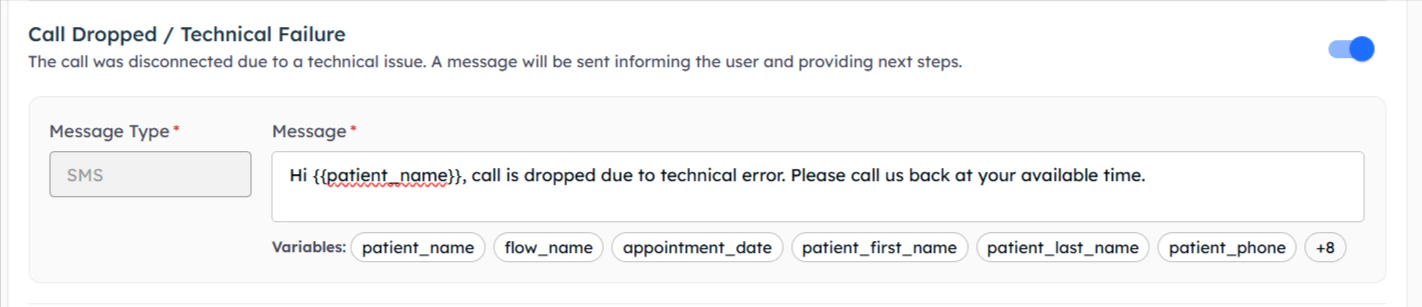 **Example Message:**
```
Hi {{name}}, we experienced a technical issue during our call. We apologize for the inconvenience. Please call {{support_number}} or we'll try calling you again shortly.
```
## Campaign Configuration & Launch
Multi-modal campaigns include all the configuration options available in single-modal campaigns, plus the messaging features detailed above.
### Standard Configuration
Multi-modal campaigns inherit all single-modal campaign features:
Choose your AI assistant for voice conversations
Set date, time, and timezone for campaign execution
Upload contacts with required fields for both voice and SMS
Configure email notifications for campaign status
### Enhanced Contact Requirements
For multi-modal campaigns, ensure your contact data includes:
* **phone\_number**: Primary contact number for voice calls
* **SMS-compatible number**: Ensure numbers can receive SMS
* **Voice prompt variables**: For AI conversation personalization
* **SMS message variables**: For pre and post-call message personalization
* **Contact information**: Names, preferences, relevant context
* Verify all phone numbers support SMS
* Ensure all dynamic variables are populated
* Test with a small batch before full launch
## Best Practices for Multi-Modal Campaigns
* **Pre-call timing**: 10-30 minutes for appointments, 2-24 hours for general outreach
* **Post-call immediacy**: Send within 5 minutes of call completion
* **Business hours**: Respect SMS timing preferences and regulations
* **Clear and concise**: SMS has character limits, be direct
* **Personalization**: Use dynamic variables for relevant content
* **Call-to-action**: Include clear next steps in every message
* **Professional tone**: Maintain consistent brand voice across channels
* **Opt-in requirements**: Ensure SMS consent where required
* **Unsubscribe options**: Include opt-out instructions
* **Time restrictions**: Follow local SMS timing regulations
* **Record keeping**: Maintain logs for compliance auditing
## Monitoring Multi-Modal Performance
Multi-modal campaigns provide comprehensive tracking:
* **Pre-call SMS delivery rates**
* **Call answer rates** (with/without pre-call SMS)
* **Post-call message engagement**
* **Complete customer journey tracking**
* **Outcome-based messaging effectiveness**
## Next Steps
Compare with voice-only campaign approach
Return to main campaigns documentation
**Example Message:**
```
Hi {{name}}, we experienced a technical issue during our call. We apologize for the inconvenience. Please call {{support_number}} or we'll try calling you again shortly.
```
## Campaign Configuration & Launch
Multi-modal campaigns include all the configuration options available in single-modal campaigns, plus the messaging features detailed above.
### Standard Configuration
Multi-modal campaigns inherit all single-modal campaign features:
Choose your AI assistant for voice conversations
Set date, time, and timezone for campaign execution
Upload contacts with required fields for both voice and SMS
Configure email notifications for campaign status
### Enhanced Contact Requirements
For multi-modal campaigns, ensure your contact data includes:
* **phone\_number**: Primary contact number for voice calls
* **SMS-compatible number**: Ensure numbers can receive SMS
* **Voice prompt variables**: For AI conversation personalization
* **SMS message variables**: For pre and post-call message personalization
* **Contact information**: Names, preferences, relevant context
* Verify all phone numbers support SMS
* Ensure all dynamic variables are populated
* Test with a small batch before full launch
## Best Practices for Multi-Modal Campaigns
* **Pre-call timing**: 10-30 minutes for appointments, 2-24 hours for general outreach
* **Post-call immediacy**: Send within 5 minutes of call completion
* **Business hours**: Respect SMS timing preferences and regulations
* **Clear and concise**: SMS has character limits, be direct
* **Personalization**: Use dynamic variables for relevant content
* **Call-to-action**: Include clear next steps in every message
* **Professional tone**: Maintain consistent brand voice across channels
* **Opt-in requirements**: Ensure SMS consent where required
* **Unsubscribe options**: Include opt-out instructions
* **Time restrictions**: Follow local SMS timing regulations
* **Record keeping**: Maintain logs for compliance auditing
## Monitoring Multi-Modal Performance
Multi-modal campaigns provide comprehensive tracking:
* **Pre-call SMS delivery rates**
* **Call answer rates** (with/without pre-call SMS)
* **Post-call message engagement**
* **Complete customer journey tracking**
* **Outcome-based messaging effectiveness**
## Next Steps
Compare with voice-only campaign approach
Return to main campaigns documentation